TestFlight on Android: What to Use Instead
There is no TestFlight for Android. Apple’s own documentation describes testers installing the TestFlight app on Apple devices and never mentions an Android version, so the question is really which Android tool does the same job. The short answer is that Google Play’s internal and closed testing tracks cover most of it, Firebase App Distribution covers the rest, and the two work differently enough that a team shipping to both platforms needs to understand where they diverge.
I wrote this for the person who has to run beta testing on both platforms, often on an app they inherited, and who has already found out that the one process they knew doesn’t carry over. Most answers online stop at “use Firebase” without comparing features. Below, each TestFlight job is matched to its Android counterpart using Apple’s and Google’s current help pages, and the gaps are called out.
What does TestFlight actually do that you need to replace?
TestFlight does four separate jobs, and it helps to name them before you pick an Android tool, because no single Android option matches all four in the same way. Apple’s TestFlight page describes them directly: you upload a build, you invite internal and external testers, testers install it through the TestFlight app, and they send feedback back to you.
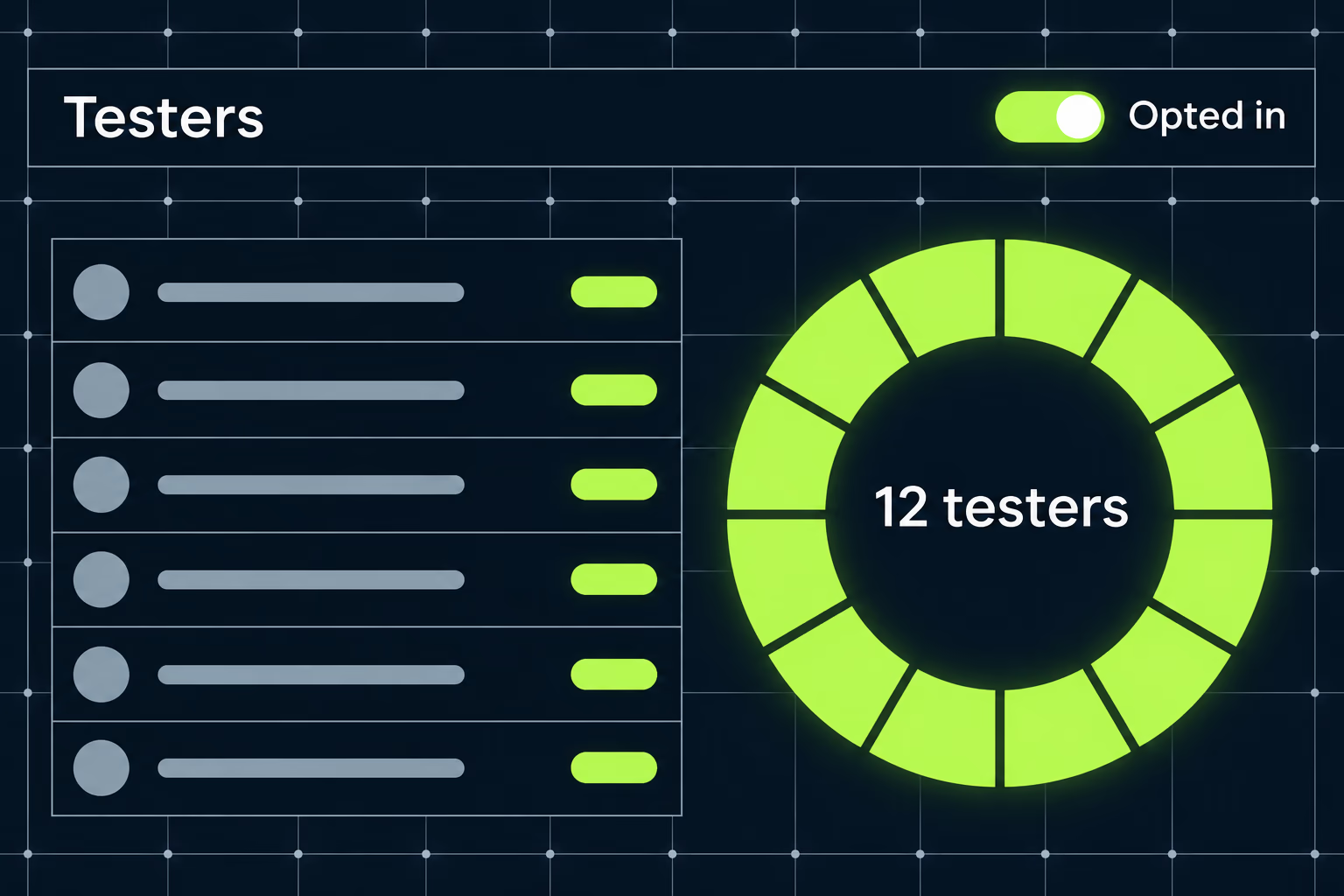
The first job is distribution without paperwork. Apple says you don’t need to keep track of UDIDs or provision tester profiles, which is the old pain of registering every tester’s device by hand. The second job is two audiences with different rules. Apple lets you add up to 100 internal testers from your own team, in the Account Holder, Admin, App Manager, Developer or Marketing roles, and up to 10,000 external testers who can be invited by email or by a public link.
The third job is a review step. Apple says that to invite external testers you create a group, add the builds, and have your first build approved by App Review for TestFlight. The fourth job is a clock. Apple’s overview says you can test a build for up to 90 days, and that your build becomes unavailable for testers after 90 days. Feedback, crash reports and build metrics sit on top of those four, and I covered where that data lives in the TestFlight feedback guide.
Which Android option is closest to TestFlight?
Google Play internal testing is the closest match for a small team, and closed testing is the closest match for an invited outside group. Both live inside Play Console under the app’s testing section, and both distribute through the Play Store app that testers already have on their phones, which is the same convenience TestFlight offers on iPhone.
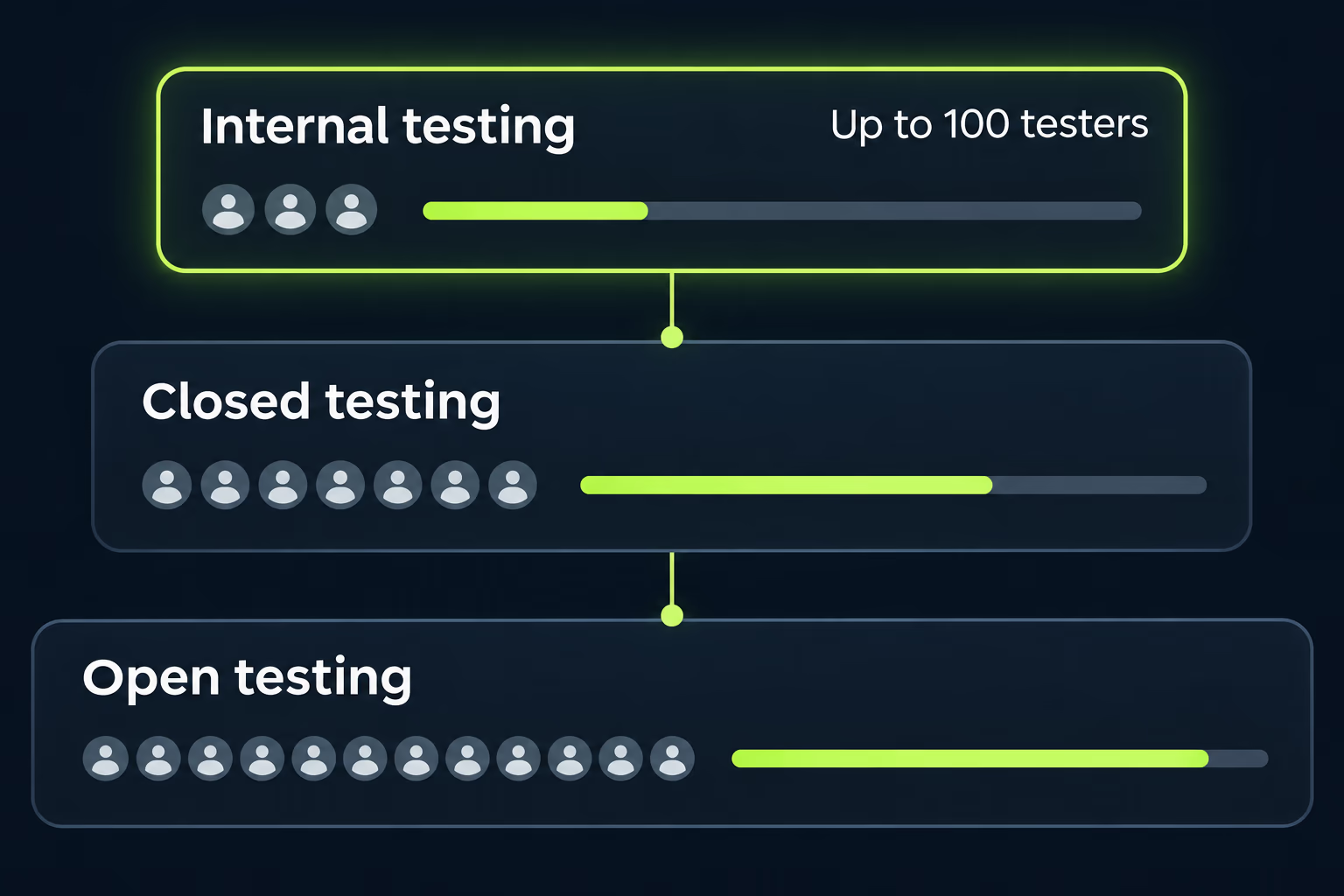
Google’s help page describes three tracks. Internal testing distributes your app to up to 100 testers for initial quality checks. Closed testing sends a pre-release version to a wider set of testers for targeted feedback. Open testing makes your test version visible on Google Play, and anyone can join the program and submit private feedback. Google says you can run multiple closed tests and one open test at the same time, which is a bigger menu than TestFlight’s two audiences.
Here is how the pieces line up:
| What you need | TestFlight | Google Play |
|---|---|---|
| Small trusted team | Up to 100 internal testers | Internal testing, up to 100 testers |
| Larger invited group | Up to 10,000 external testers | Closed testing |
| Anyone who finds the link | Public link, with a tester limit you can set | Open testing, visible on Google Play |
| Review before testers see it | First external build goes to App Review | Not described for internal testing |
| Build lifetime | 90 days | Not described |
| Tester identity | Email invitation or public link | Google Account or Workspace account |
Apple puts a human review between you and your external testers, which is slow but also acts as an early warning. Google’s help page doesn’t describe a review for internal testing, and it says a new Android App Bundle becomes available to internal testers within minutes. That speed is a real advantage when you’re chasing a bug fix, and it also means nobody checks your build before it reaches phones.
Google says the first time you publish any test track, the link can take several hours to become available, and later changes can also take several hours. Minutes is the best case for an internal track that already exists, so budget for hours in your release plan.
How do you set up internal testing step by step?
You create a release on the internal testing track, upload an Android App Bundle, add testers by email or Google group, and send them the opt-in link. Google’s help page lets you start an internal test before you finish setting up the app, and says first-time uploads show temporary name and store listing information for up to 48 hours, so an unfinished app can still be tested.
The order I’d follow on an app you didn’t build is this. First, open the app in Play Console and find the internal testing page, then check who is already on the tester list, because an inherited program often has former employees and abandoned test addresses in it. Second, create the release and upload a bundle. If the app still ships as an APK, the AAB vs APK guide explains what Play now requires. Third, add testers and copy the opt-in link.
Testers then open that link on their phone, accept the invitation, and install from the Play Store. They need a Google Account or a Google Workspace account to do it, which is the Android version of Apple’s invitation email.
Testers on internal tracks can install paid apps for free, while testers on open and closed tracks must buy a paid app. Feedback from your test users won’t affect your public rating. And if your testers belong to an organization that uses managed Google Play, Google says enabling that feature makes the app private, so it’s no longer searchable on the public Play Store. That last one surprises people, because turning on a setting for a test can change how the live app appears, and I’d think hard before flipping it on an app that already has customers.
When is Firebase App Distribution the better choice?
Firebase App Distribution is better when you want builds to reach testers by email invitation without going through the Play Store, or when you want one tool that handles both platforms. Google describes it as a way to speed up delivery of pre-release Android and iOS apps to trusted testers, and its pricing page lists App Distribution as no-cost.
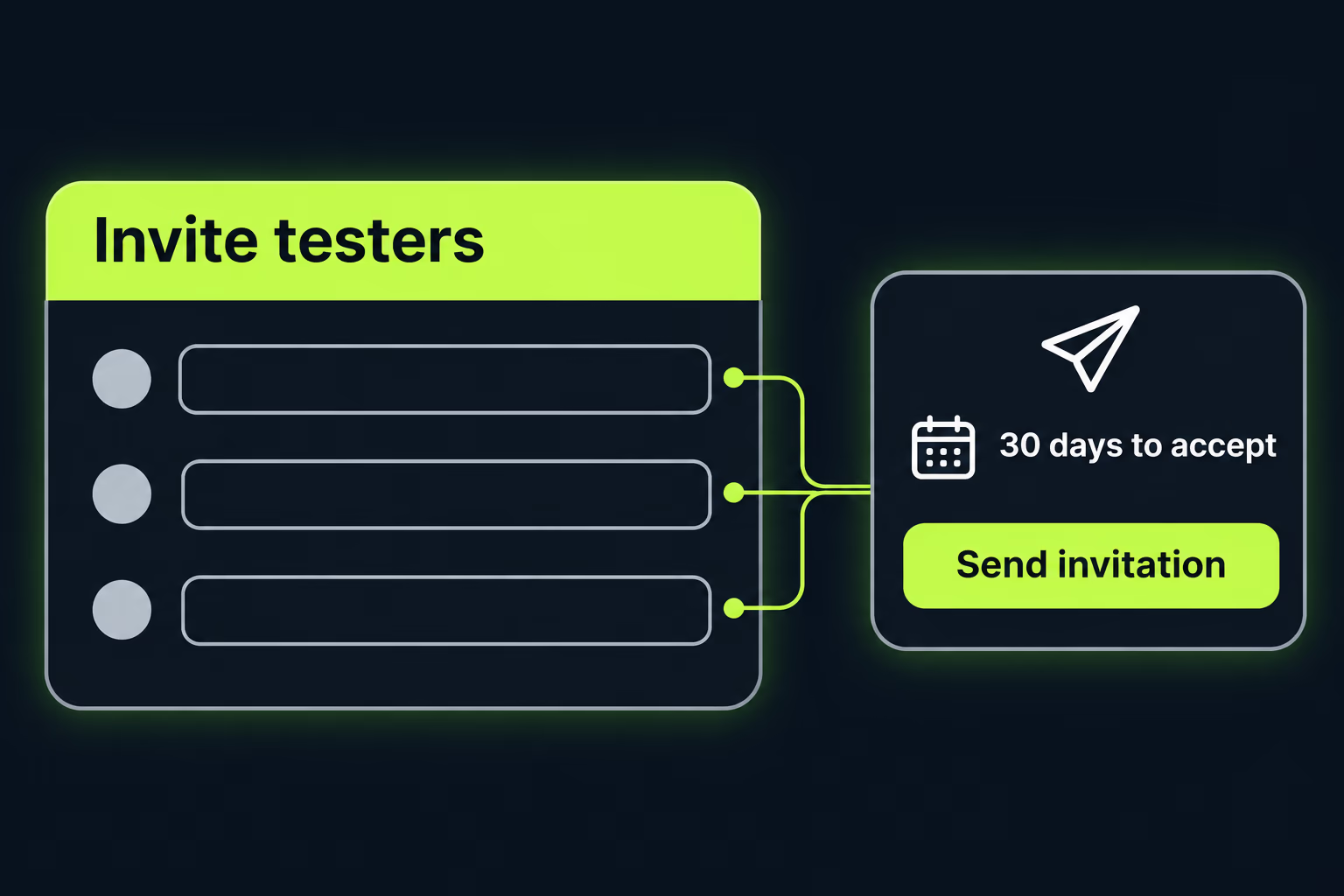
The Firebase console flow is short. You upload a build, add testers by email address or by group, and the tester automatically receives an email invitation. Testers who haven’t been invited before get a first message to get started, and existing testers get a notification that a new build is ready. Google’s documentation says testers have 30 days to accept an invitation before it expires.
The trade-off is the review and trust model. A build sent through Firebase doesn’t need to be published to any Play track, so you can hand an early build to a client or a stakeholder without touching your store presence at all. What you give up is the Play Store’s own handling of updates and the tracks that feed into a production release. A Firebase build and a Play build are separate artifacts, and the number one failure I’d watch for on a team using both is testers validating one file and production shipping another.
If your project already uses Firebase for crash reporting, App Distribution is also a small step from what’s installed. If it doesn’t, adding an entire SDK and console project just to send beta builds is more setup than internal testing needs. Choose Firebase for the email flow and the cross-platform view, and choose Play tracks for anything that should rehearse the real store release.
What do you lose moving from TestFlight to Play testing?
You lose Apple’s review step, Apple’s 90-day clock and the single consistent tester experience, and you gain speed and a wider set of options. The review step matters most on an app that someone else built, because App Review for TestFlight forces at least one pass through Apple’s checks before outside testers see a build, and Play internal testing has no stated equivalent.
The clock cuts both ways, because Apple’s 90-day expiry is a nuisance when your testers go quiet and the build dies, and it’s also a useful forcing function, because it makes teams upload a fresh build regularly. Google’s help page doesn’t describe a comparable build expiry, so a stale beta can sit in a track for a long time, and nobody gets reminded that it’s old. I’d add a calendar entry to review each track every month.
Identity is the third gap, since TestFlight accepts an invitation email or a public link, and external testers can show up as anonymous. Play testers are Google accounts, which means you always know which account installed the build, and it also means a tester has to use the right address. When someone tells you the invite isn’t working, the first thing to check is whether they’re signed in to the Play Store with the address you added.
Feedback is where the platforms differ most. TestFlight collects screenshots and crash reports inside App Store Connect. Google’s help page says open testing feedback is submitted privately, and the crash side on Android sits in Play Console’s vitals instead of next to the tester list. If that’s new to you, the Android vitals article shows the thresholds that decide how much a crash rate costs you.
How do you run one beta process across iOS and Android?
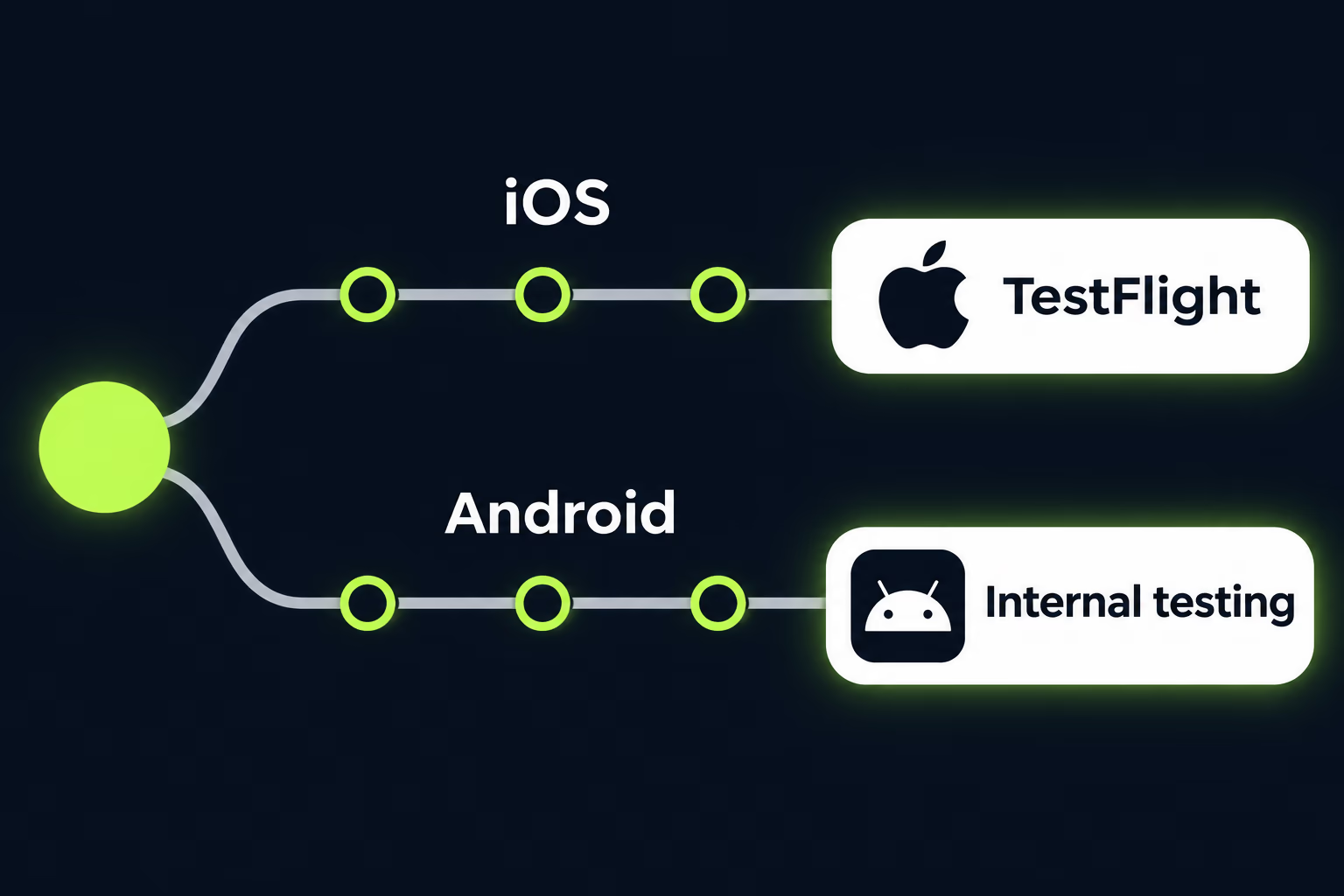
You decide the tester list once, keep one build number across both platforms, and give each platform its own track with the same name and purpose. Teams often skip this, which leaves iOS testers in one spreadsheet and Android testers in another, so nobody can say who is testing which version.
For a team without a dedicated release engineer, I’d run it like this:
- Keep a single document that lists every tester, the platform they use, and the address tied to each store account.
- Cut one release candidate and tag it once, then upload the matching build to TestFlight and to the Play internal track on the same day.
- Give the iOS internal group and the Android internal track the same members wherever possible, so a bug report from either platform comes from someone you can ask a question.
- Use TestFlight external groups and Play closed testing for the same outside audience, and keep open testing and public links for late-stage checks only.
- Review both tools monthly for stale builds, departed users and expired access.
When a tester reports a crash, you need to know whether it happened on the iOS build or the Android build, and which commit produced each one. If you’ve inherited signing and certificates that nobody documents, sort that first, because an expired iOS certificate will block a TestFlight upload long before any Android issue does, and the iOS distribution certificate guide walks through that recovery.
RapidLabs handles this kind of two-platform release setup for teams that took over an app and found the beta process split across tools nobody fully understood. If you’re an agency that needs someone to run the Android side while your own people keep iOS, the agency mobile partner page describes how that works.
What should you check on an Android beta you inherited?
Check who owns the Play Console account, who is on each tester list, and which tracks still hold old releases. Those three questions find most of the problems, and none of them requires reading a line of code.
Account ownership comes first, because if the app lives in a developer account that belongs to a former contractor, you may not be able to open the testing pages at all, and the Google Play app transfer guide covers what moves and what stays behind. The account’s age and type matter as well, because Google requires personal accounts created after November 13, 2023 to run a closed test with at least 12 testers opted in continuously for 14 days before production access. If you’re about to move an app into such an account, read the closed testing requirements before anyone signs a handover.
Then read each track’s tester list. Look for addresses that belong to people who’ve left, for Google groups nobody maintains and for testers who accepted an invitation years ago and never opened the app. On the track pages, look at which release is live, because an old build still marked active on closed testing might be what a tester is running today.
Last, check whether a test is changing your live app. Google’s page says that changing pricing or country availability affects all versions across all tracks, and that turning on the managed Google Play setting makes the app private. Those are settings someone may have toggled during an old beta.
If your Android beta process turns out to be undocumented and nobody on the team can say what each track is for, that’s a normal state for an inherited app, and RapidLabs sees it often enough that we start every takeover by listing the tracks. The mobile app testing checklist is a good companion for deciding what testers should actually verify once the pipeline works.
What is the simplest setup that works for most teams?
For most teams, use Play internal testing for your own people, Play closed testing for outside testers you can name, and TestFlight for iPhone, and add Firebase App Distribution only when you need to send builds to someone who shouldn’t touch your Play listing. That keeps the Android process close to the real store release, which is the main reason to test at all.
Start by picking the track for each audience and writing it down. Your own developers and a handful of staff go on the internal track with up to 100 testers, because that’s where a new bundle reaches phones fastest. Customers or pilot users go on closed testing, where you can name each person. Nobody goes on open testing until the store listing is something you’re happy for strangers to read.
Then pick one person to own the tester list on each platform and give them a monthly review. Most beta programs stall because nobody owns the tester list, so the owner’s job is to notice when a track has drifted. I’d write the process on a single page that a new hire could follow.
Play’s first publish of a track can take several hours to reach testers, TestFlight’s first external build waits on App Review, and neither company promises a fixed turnaround. If a launch date depends on a beta finishing, build in slack for both. When you want a second pair of eyes on a release pipeline that spans both stores, you can talk to a senior engineer about your app and we’ll look at what you have before suggesting any change.
Frequently asked questions
Is there a TestFlight app for Android?
No version of TestFlight for Android appears anywhere in Apple's TestFlight documentation, which describes testers installing the TestFlight app on Apple devices and nothing else. Android has its own equivalents, and which one you want depends on how many testers you have and whether they use Google accounts. The two official routes are the internal, closed and open testing tracks inside Google Play Console, and Firebase App Distribution, which Google's pricing page lists as a no-cost product. A team that wants to ship a beta to both platforms usually runs one of each.
What is the Android equivalent of TestFlight?
Google Play internal testing is the closest match for a small team, and closed testing is the closest match for an invited outside group. Internal testing supports up to 100 testers and Google says a new Android App Bundle becomes available to them within minutes. Closed testing takes a wider group, and open testing lets anyone on Google Play join through a public listing. Firebase App Distribution is the alternative when you want to send builds by email invitation without going through the Play Store at all.
Can I invite Android testers with just an email address?
Yes, with either tool, although the address has to be tied to a Google account for the Play Console tracks. Google's help page says testers need a Google Account or a Google Workspace account to join a test. Firebase App Distribution sends an email invitation straight from the console, and Google's documentation says testers have 30 days to accept it before it expires. Ask each tester which address they use on their phone before you add anyone, because a mismatch there is the most common reason an invite appears to do nothing.
How many testers can I have on Google Play internal testing?
Up to 100 testers, according to Google's Play Console help page on setting up tests. TestFlight gives you the same number for internal testers, with up to 100 members of your App Store Connect team in the listed roles, and then a separate limit of 10,000 for external testers. Google's closed and open tracks have their own rules, and the help page I read doesn't state a single headline number for them, so check the track page in your own console rather than relying on a figure from a blog post.
Does a Google Play beta expire the way a TestFlight build does?
Apple states that a TestFlight build becomes unavailable to testers after 90 days. The Play Console help page I read doesn't describe a comparable build expiry for its testing tracks, so I won't claim there is none. What it does describe is a delay on the first publish, where the test link can take several hours to become available to testers. Plan your first Android beta a day ahead of any deadline, and confirm the expiry behaviour on your own account before you promise testers a date.
Do testers on Google Play open testing affect my public rating?
Google's help page says feedback from your test users won't affect your app's public rating, and that open testing feedback is submitted privately. Open testing does make your test version visible on Google Play, though, so the store listing has to be ready for strangers to see. That is the main reason many teams stay on closed testing until the app is nearly finished. If you only want invited people to see the build, an open track is the wrong choice.
Why does my Android beta need 12 testers when TestFlight never asked?
That requirement applies only to personal developer accounts created after November 13, 2023, and it has nothing to do with which tool you use for beta builds. Those accounts must run a closed test with at least 12 testers opted in continuously for 14 days before they can apply for production access. TestFlight has no equivalent gate, which is why teams used to Apple's process are caught off guard by it. Organization accounts are outside that rule, and the closed testing article on this site covers it in full.
Stuck on a release, a crash, or an app nobody owns?
RapidLabs maintains, stabilizes and takes over existing iOS and Android apps. Send the app link, the stack, and what is going wrong, and you will get a plain answer on whether you need help at all.
Talk to a senior engineer about your app