minSdkVersion: When to Raise It on a Live App
minSdkVersion is the setting in your Android build file that names the oldest version of Android your app is allowed to run on. Raising it is a one-line edit that cuts every phone below the new number off from future updates, and it is usually forced by something else, such as a library you need or a Google Play deadline. For an app that’s already live, the right value comes from your own user data and the libraries you depend on, not from a guide written for new projects.
Search for this topic and you land on a Stack Overflow answer about changing the value in Android Studio, a 2023 agency article about choosing a minimum for a brand new project, and some Medium posts about specific upgrades. None of them is written for someone who owns a shipped app, has real customers on real phones and needs to know what a raise will do to them. This piece is for that person, including the owner of an app inherited from a previous developer where nobody remembers why the number is what it is, which is a situation we see often at RapidLabs.
What does minSdkVersion actually do?
It tells Android and Google Play which phones can install your app. Google’s reference for the manifest says the system prevents a user from installing the application if the system’s API level is lower than the value you declare. When you don’t declare one at all, the default is 1, which claims the app works on every Android version ever shipped, and an app that does that on a phone missing the APIs it calls will crash at runtime.
Google Play adds a second layer on top. The manifest value works at the level of an individual device, so a model that ships in several variants can be partly supported. Play’s help page gives the example that setting the minimum to Android 9 means only devices running Android 9 or newer are eligible, and if one phone model has some variants on Android 9 and some below it, only the newer variants qualify.
Two other numbers sit next to it in the same file, and mixing them up causes most of the confusion on this topic, so the table below separates all three.
| Setting | What it controls | Who decides it |
|---|---|---|
| minSdk | The oldest phone that can install the app | You, based on your users |
| targetSdk | Which Android behaviour rules apply at runtime | Google Play deadlines |
| compileSdk | Which Android APIs your code can reference while building | Your build tooling |
The target number has an annual deadline, which our piece on the Google Play target API level walks through. The minimum has no deadline from Google at all, and that is why it gets neglected. Nothing forces anyone to look at it until a library does.
Why do your libraries keep pushing it up?
Because the packages your app depends on raise their own minimums, and your build refuses to combine a library that needs a newer phone with an app that claims to support an older one. The error is a classic: the build stops with “Manifest merger failed” and a line saying the app’s minSdkVersion cannot be smaller than the version declared in the library. Google’s own announcement about Play services and Firebase in 2016 shows the same message for a jump from level 9 to level 14, so this isn’t a new problem, only a recurring one.
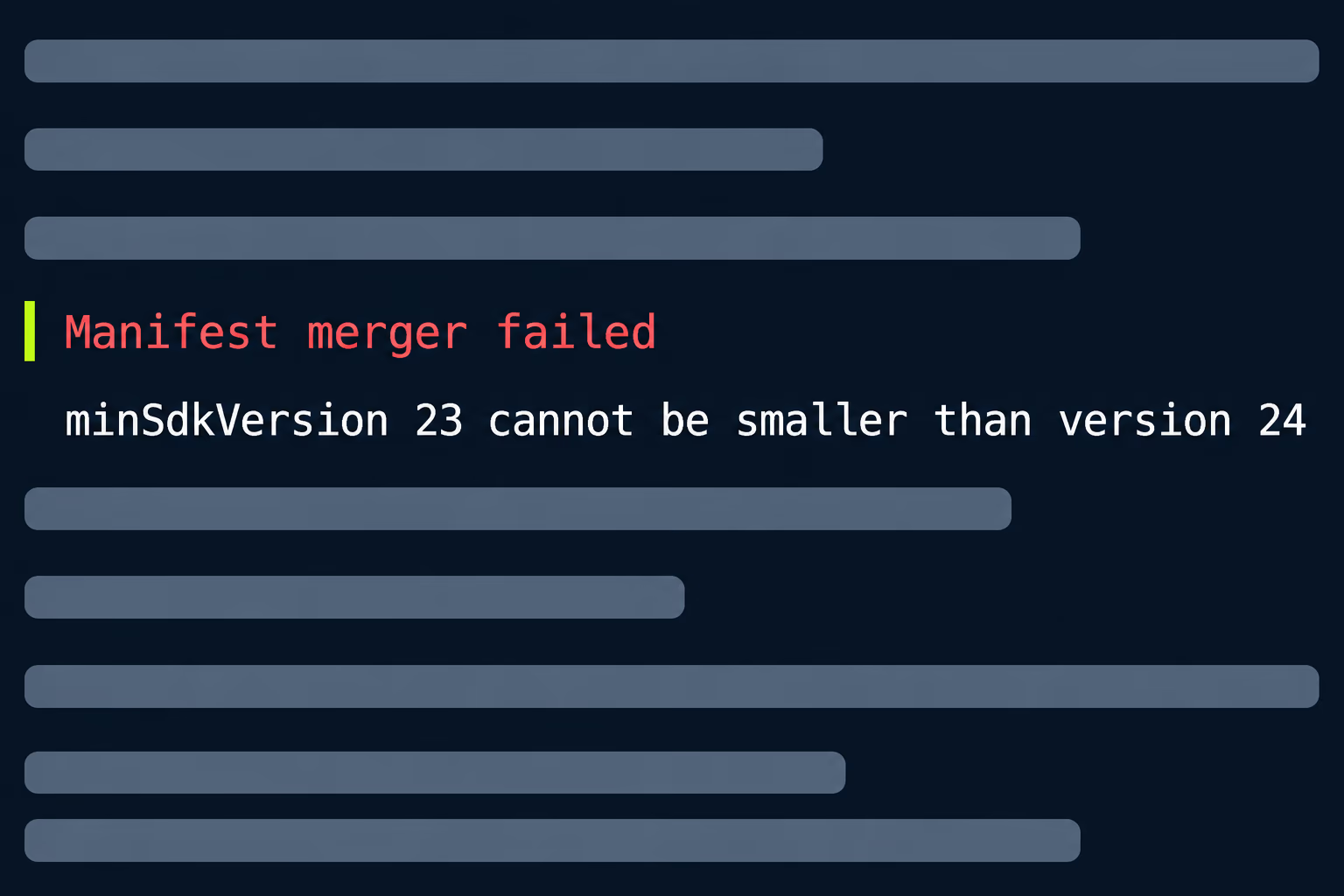
The build output usually suggests forcing the library with an override instead. Google’s blog from that period says plainly that the override won’t help you run the app on older devices, because the library still needs the newer APIs and the phone doesn’t have them. It moves the failure from build time to a crash on a customer’s phone, which is the worse place for it.
The floor keeps rising for ordinary reasons. Google’s AndroidX page states that the default minSdk for its libraries is 24, chosen to cover about 99 percent of Android users based on Play Store check-in data, and that the default is reviewed yearly. It only applies to new library releases, so the versions you already use keep working. In October 2023 the same team moved the default from 14 to 19, and the advice in that post is worth remembering: if you can’t raise your minimum for business reasons, stay on the previous versions of AndroidX.
That advice describes a trade many inherited apps are quietly living in. The app keeps a low minimum, so it stays on old library versions, and the old library versions are the ones that block the next Play deadline or carry the next security problem. Staying low isn’t free, it’s a loan taken out against every future update.
Where has the industry floor settled?
At API level 24, which is Android 7.0. Several independent sources agree on it right now, and checking them is quick enough that you can verify it yourself before relying on this article.
- AndroidX libraries default to a minimum of 24, per Google’s own versions page.
- Firebase’s setup requirements list API level 24 and Android 7.0 or higher, with the note that some products have stricter requirements.
- Recent releases of individual Firebase products, such as A/B Testing 24.0.0 and Firebase AI Logic 18.0.0, list raising the minimum to API level 24 as a breaking change in the release notes.
- The current development branches of React Native and Flutter both set 24 as the default for new projects.
That doesn’t mean every app should move to 24 tomorrow. It means that if your app sits below 24, you’re already on borrowed time with at least some of these dependencies, and the question is when you’ll be forced to choose, not whether. If your live app still declares 21 or 23, take a list of your dependencies and find out which of them have already moved on, because that tells you how many releases behind you are.
How many of your users would you lose?
You find out from two sources, and you should look at both before touching the number. The first is Play Console’s Device catalog, under Monitor and improve, then Reach and devices. It has tabs for All, Supported, Excluded and Targeted devices, and each device model’s detail page shows how that model is distributed across Android versions for your app. You can also export the whole list as a CSV file, which is the easiest way to hand the data to someone else.
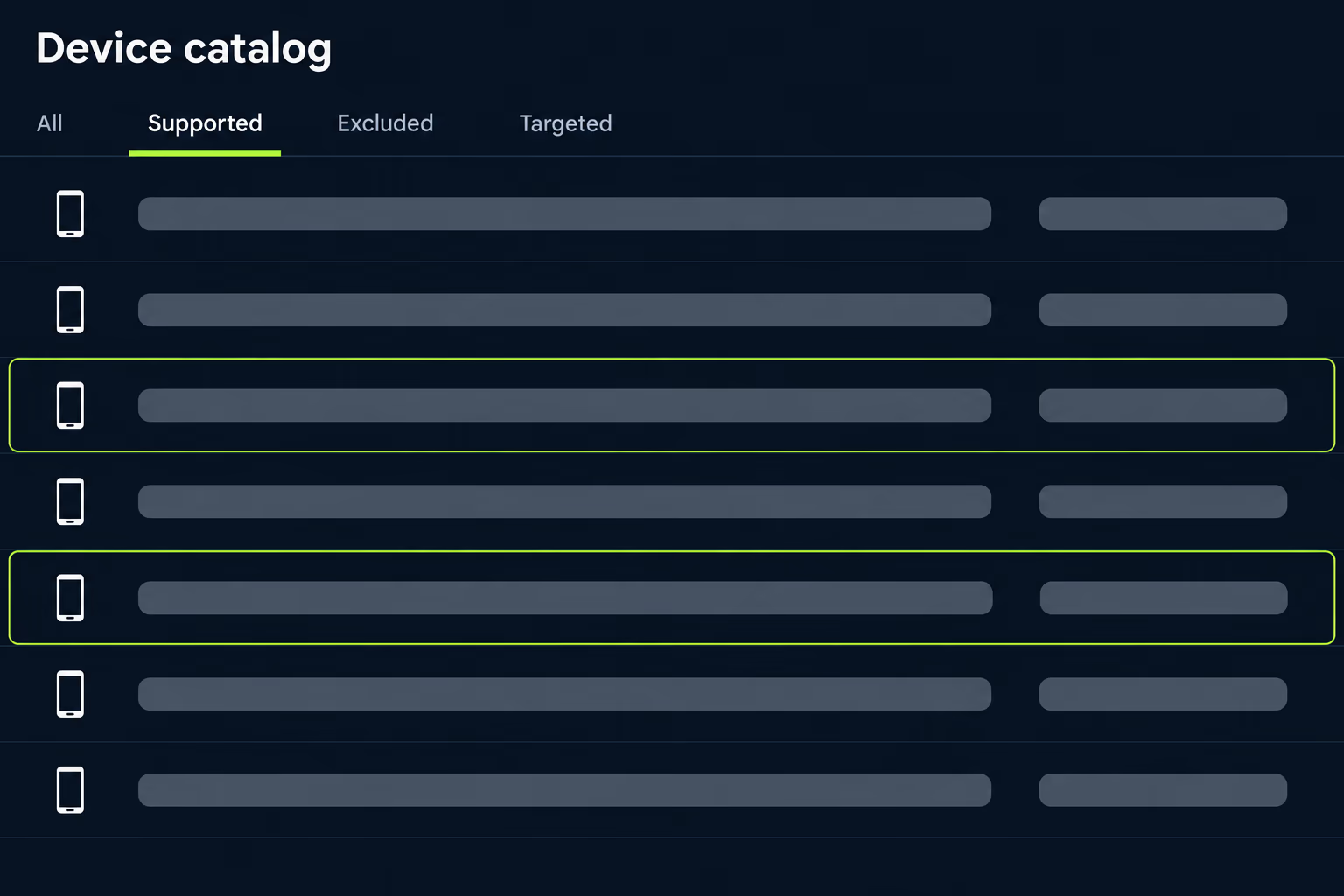
The second source is your own analytics, since installs and active users are different groups. A phone that installed your app four years ago and hasn’t opened it since shows up in install counts and never in a monthly active figure. Dropping that phone costs you nothing, and dropping a phone that opens the app daily costs you a customer, so the Android version breakdown of people who actually use the app is the number to trust.
Once you have the percentage, a few ways of reading it are fair. A share of one or two percent on versions you’d drop is rarely worth holding back a library upgrade, particularly if those phones no longer receive security updates themselves. A share of ten percent or more deserves a conversation with whoever owns revenue, because some of those people may be paying customers on older company-issued phones. A segment you can’t measure is a reason to measure it first, not a reason to guess in either direction.
One caution about the raw numbers. Play’s help page notes that the device catalog shows both certified and uncertified devices, and that uncertified devices may not receive system or app updates. A few of the old phones in your list may be devices you weren’t able to serve well anyway, so look at which ones they are before treating the whole percentage as lost revenue.
What happens to the users you leave behind?
They stay on the last version of your app that supported their phone, and they can’t see or download anything newer. Google described this behaviour when it raised the floor for its own libraries, saying users of devices below the new level wouldn’t be able to see or download the update but could still download and use the most recently published version that targets their device. Nothing disappears from their phone, and nobody gets a message.
That sounds gentle, and for the user it is, but it has three consequences for you as the owner. Those users stop receiving bug fixes, so any crash you repair in the new version stays broken for them. They stop receiving features, so a promotion or a new payment flow never reaches them. And any server-side change that older app versions can’t handle, such as a retired API endpoint, will eventually break them without warning.
The last one is the real risk, and it’s the reason to decide on purpose when you’ll stop supporting the old version on your backend. If you plan to keep serving the final compatible build, someone needs to own that promise. If you don’t, tell the users on it before the endpoint changes, since an in-app message in the last compatible version is the only direct line you’ll ever have to them. For this reason the raise is better treated as a short migration plan than as a single line of code.
How do you raise it without breaking the app?
Raise it in a branch, build against the new value, and let the compiler show you what’s now dead code. Changing the number in the Gradle file is trivial, and the effort sits in what the change makes possible and what it makes unnecessary. A rough order of work that holds up for most apps looks like this:
- Set the new minSdk, then rebuild and fix whatever the dependency resolver reports.
- Search the code for version checks against the old floor and remove the branches that can never run.
- Run the app on an emulator at exactly the new minimum, not only on a recent phone.
- Release to a closed testing track first and check the Device catalog for the devices that dropped out.
The emulator step is where most of the surprises appear, because the minimum version is the one nobody tests. A screen that renders fine on a current phone can behave differently on the oldest version you claim to support. Our mobile app testing checklist has a section on which devices and OS versions to test on that covers this properly.
Be careful with the two Play tools that look similar. Manifest declarations define which devices your app supports, while console exclusions are a separate rule layer, and Play’s documentation states that exclusions override the supported devices declared in the manifest. If a device mysteriously disappears from your Supported tab after a release, check both places before assuming the minimum caused it.
The release also needs a rollback story. Because the raise cuts off devices rather than breaking code, a crash-rate view won’t tell you it went wrong, since the people who can’t get the update are simply absent from it. Watch install numbers and the Device catalog for a few days after the rollout instead, and look for a drop that matches the share you predicted.
When should you not raise it yet?
When your data says a large paying group is below the line and the cost of waiting is small. The honest answer isn’t always to go up, and a guide that says otherwise is selling you a migration. Staying put makes sense if the library versions you use still receive security fixes, if no current Play deadline depends on a newer dependency, and if the affected users matter commercially.
It also makes sense to wait when the app is about to be replaced. If a rewrite is already funded and scheduled, spending a quarter on raising the floor of the old code doesn’t pay back. Our comparison of rewrite vs refactor is the place to settle that question first, because the answer changes how much work on the existing app is worth doing.
What doesn’t make sense is leaving the number alone because nobody owns it. An app whose minimum was set years ago by a developer who has since left is not making a decision, it’s drifting, and drift is what turns a routine library update into an emergency the week a store deadline arrives. A written note in the repository saying what the minimum is and why costs nothing and prevents most of that.
How do you choose the number for your app?
Start from your data, then check it against the dependencies, then choose the lowest value that lets you keep updating them. For most business apps in late 2026 that points to API level 24. If your active users show almost nothing below it and your libraries already want it, make the move at the next regular release instead of waiting for a forced one.
If the numbers show a meaningful group on older phones, there’s a middle path worth knowing. Google suggested multiple APK support for exactly this situation in its 2016 guidance, where one build keeps serving the older group while a newer build serves everyone else. It adds real release complexity and Play now steers new apps toward app bundles, so treat it as a last resort and talk to an engineer who has done it before. Our article on AAB vs APK explains what Play currently expects of older apps.
If you inherited the app and don’t know what its minimum is, why it was chosen or what it’s blocking, that’s a short discovery job rather than a project, and it’s a normal first step in RapidLabs takeover work. An app maintenance audit from RapidLabs reads the build files, lists which dependencies are stuck behind the current floor and tells you what a raise would involve before you spend anything on it. When the app has stalled and needs ongoing care, mobile app maintenance covers the regular library updates that stop the floor from becoming a crisis. If you’d rather talk it through, talk to a senior engineer about your app and we’ll look at your numbers with you, including the cases where the right answer is to leave the minimum alone.
Frequently asked questions
What does minSdkVersion mean in an Android app?
It's the lowest Android version, expressed as an API level number, that your app is allowed to install and run on. Android refuses to install the app on a phone whose API level is lower than the value, and Google Play uses the same number to decide which devices see your listing. The default when you don't declare one is 1, which claims compatibility with every version ever shipped.
What happens to users on old phones when I raise minSdkVersion?
They can't see or download the new release, so they stay on whatever version they already have. Google has described the same behaviour for its own libraries: users on devices below the new level can't get the update, but they can still download and use the most recent version of the app that supports their device. Nothing is removed from their phone, and nothing improves on it either, so every later fix and feature skips them.
What minSdkVersion should a business app use in 2026?
Level 24, which is Android 7.0, is the current practical floor because the tooling around your app has settled there. AndroidX libraries default to 24, Firebase lists Android 7.0 as its baseline, and the current React Native and Flutter project templates both start at 24. Your own user data can justify going higher or staying lower for a while, but staying below 24 means freezing libraries you would otherwise update.
Is minSdkVersion the same as targetSdkVersion?
No, because they answer different questions: minSdkVersion is the oldest phone that can install the app, while targetSdkVersion is the Android version the app was tested against, which controls which behaviour rules Android applies at runtime. Google Play enforces a deadline for the target number each year, but the minimum is your own commercial decision.
Can I raise minSdkVersion for one release and lower it again later?
Technically yes, because the value lives in your build file and each release carries its own. In practice you shouldn't plan on it, since phones that were excluded for a release may have stopped receiving updates, and code you deleted to support the higher floor won't come back by itself. Treat the raise as one-way and use a closed testing track first if you want to see the device impact before it reaches production.
How do I find out how many of my users are on old Android versions?
Open the Device catalog in Play Console under Monitor and improve, then Reach and devices, and look at the Android version distribution on the device details pages for the models your app reaches. Your own analytics tool is the second source, because it shows the Android versions of people who actually open the app rather than everyone who installed it. Compare the two before deciding, since a device that installed years ago and never opens the app costs you nothing to drop.
Stuck on a release, a crash, or an app nobody owns?
RapidLabs maintains, stabilizes and takes over existing iOS and Android apps. Send the app link, the stack, and what is going wrong, and you will get a plain answer on whether you need help at all.
Talk to a senior engineer about your app