Android Edge-to-Edge: Fixing Inherited Apps
Android edge-to-edge is the behavior where your app draws underneath the status bar and the navigation bar, and Android 15 forces it on every app that targets API level 35 or higher. An app written years ago kept itself inside a safe rectangle without anyone noticing, so the first symptom after raising the target is a title bar tucked behind the clock and a bottom button half covered by the gesture handle. The fix is a set of inset adjustments on each screen, and it isn’t optional anymore, because Google Play now wants updates to target API level 36. Here’s how to find the broken screens in an app you inherited and repair them without rewriting the interface.
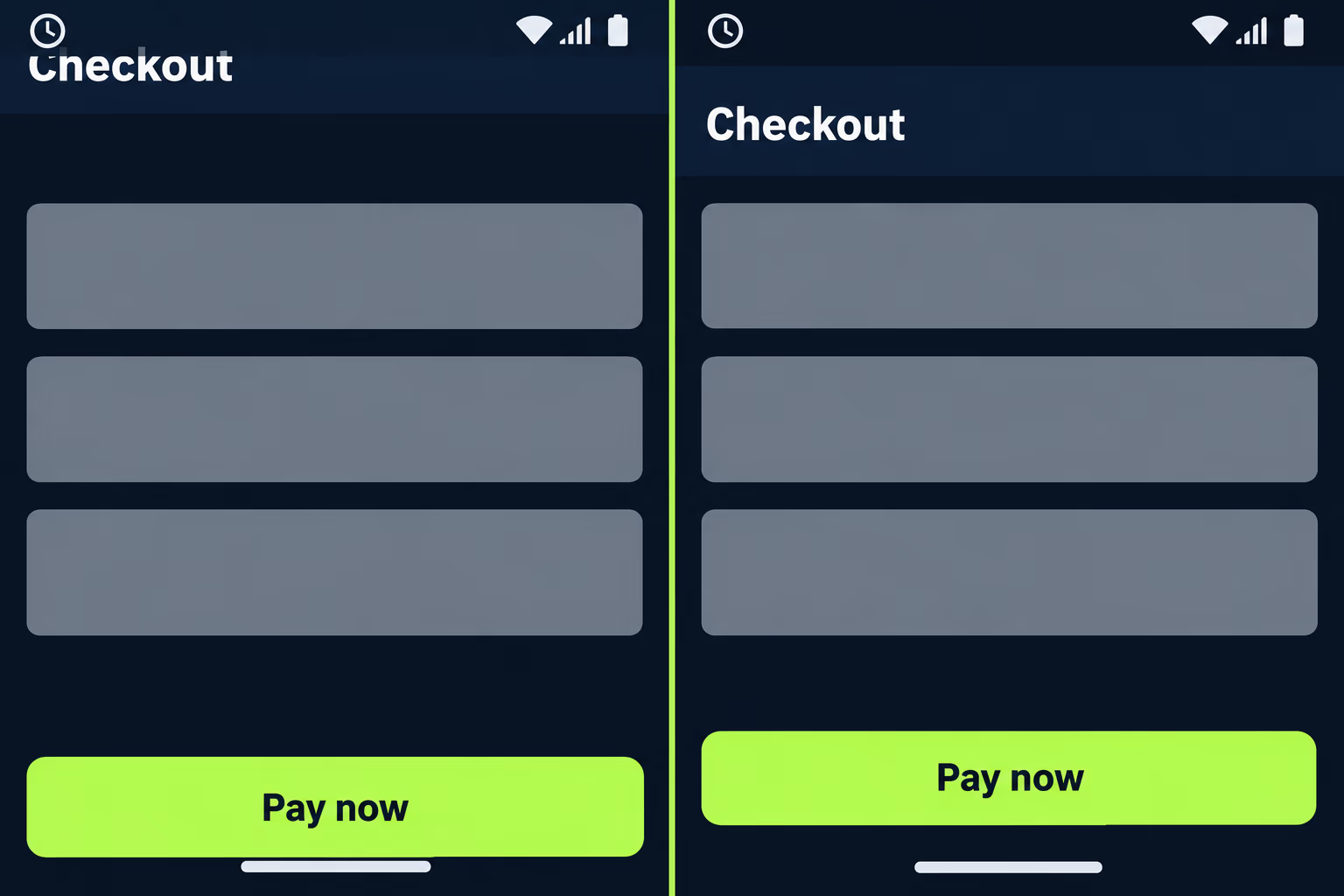
Why does my Android app look broken after raising the target API level?
Because raising the target tells Android your app is ready for the current rules, and the current rules say the system no longer keeps your layouts away from its own bars. Google’s documentation puts it plainly: apps are edge-to-edge by default on devices running Android 15 when they target Android 15, API level 35. Nothing in your logic changes, but the rectangle your layouts are allowed to occupy grows to the full physical screen, and whatever you placed at the top or bottom edge lands under system UI.
This is the part that surprises people who inherit an app. The app worked, the build is green, the tests pass, and then a one-line change to targetSdk produces a screen where the back arrow can’t be tapped because the status bar sits on top of it. Google calls it a breaking change that might negatively impact your app’s UI, and in an app with sixty screens built by three different developers, it breaks them unevenly. Some screens already handled insets because somebody once used a Material component that does it automatically, and others have fixed pixel padding that assumed a status bar height from 2019.
The timing matters because of the store rules rather than the operating system. Google Play now requires new apps and app updates to target Android 16, API level 36, with the main exceptions being Wear OS, Automotive and TV apps. We covered the full deadline, the extension that Google says runs to November 1, 2026, and the other behavior changes in our piece on the Google Play target API level requirement. Edge-to-edge is simply the change you can see on every screen, which is why it eats most of the schedule on a typical migration.
What exactly does Android 15 change on screen?
It changes five things, and knowing them by name tells you where to look. The status bar becomes transparent and the offset that used to push your content down is removed, so content draws behind it unless you apply insets. The gesture navigation bar also becomes transparent with its bottom offset disabled, which is why a floating button near the bottom edge ends up under the thin handle.
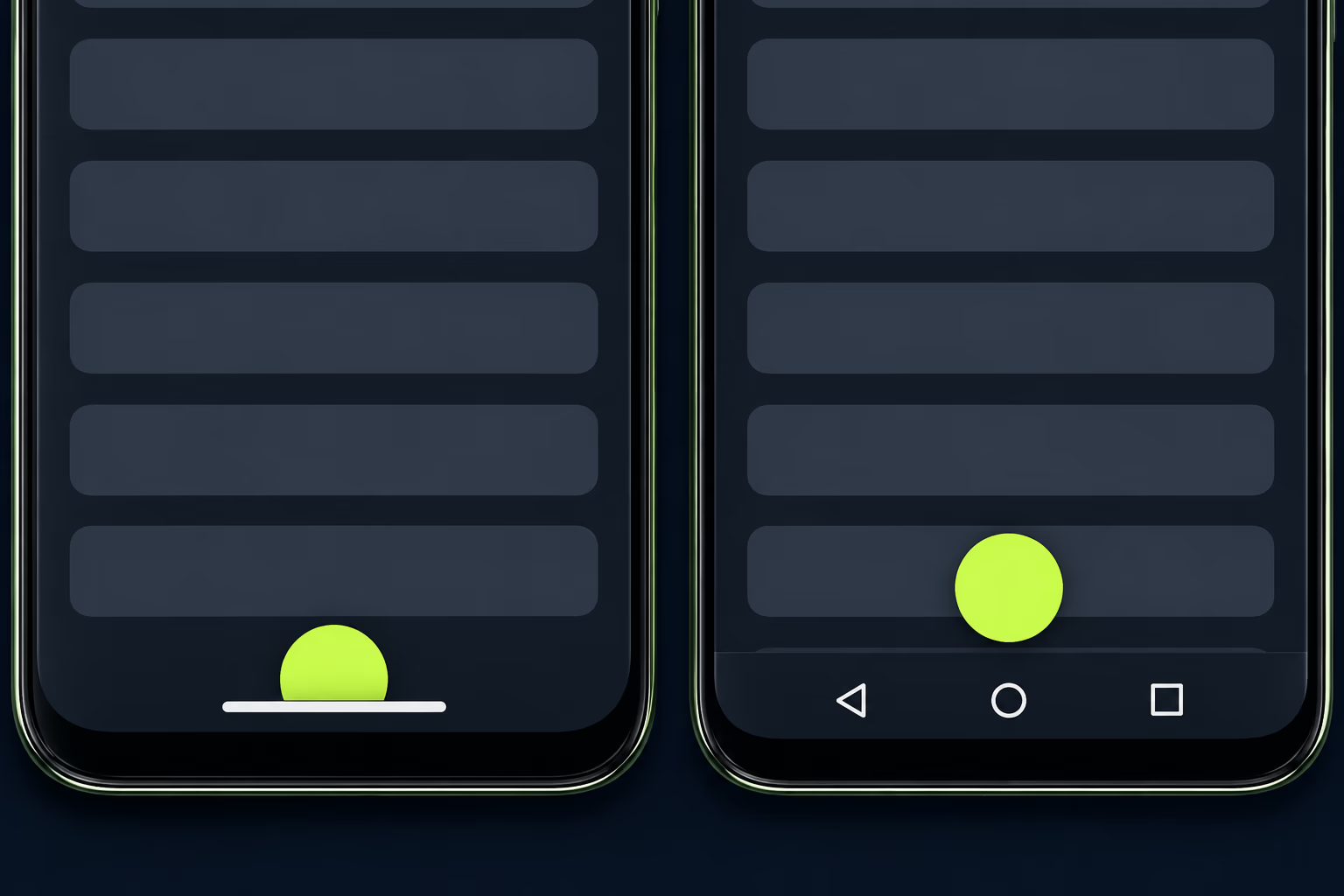
The three-button navigation bar behaves differently, and that difference is why you must test both modes. It gets 80% opacity by default, its color is set to match the window background, and the bottom offset is disabled the same way, so your content draws behind a translucent strip and not behind an invisible one. A layout that looks fine with gestures can look wrong with buttons, and the reverse happens too, so a screenshot from one phone proves very little.
Two color settings stop working, and old apps depend on both. setStatusBarColor and the matching statusBarColor theme attribute are deprecated and have no effect on Android 15, and setNavigationBarColor is deprecated and doesn’t affect gesture navigation. If the previous developer gave the app a branded purple status bar, that purple is gone once the app targets 35, and the system draws whatever sits underneath. The same applies to anyone who relied on a dark navigation bar to hide an ugly bottom edge.
The last change is the display cutout. Windows that aren’t floating must now use the always mode for layoutInDisplayCutoutMode, and the older values of short edges, never and default are all treated as always. Google notes that an app with a splash screen can crash on launch because of this, and the fix is to upgrade the core splashscreen dependency to 1.2.0-alpha01 or later, or to set the cutout mode to always on the window. That’s worth checking on day one, because a crash on launch hides every other problem.
Can you still opt out of edge-to-edge on Android?
Only for a short while, and only on one target level. An app that targets API level 35 can set the windowOptOutEdgeToEdgeEnforcement attribute to true and keep its old layout behavior on Android 15 devices. It’s a legitimate way to ship the target bump first and fix the screens afterward, and a lot of teams used it for exactly that reason.
It stops working at the next level. Android’s own documentation for Android 16 says the opt-out is deprecated and disabled for apps targeting API level 36, so on an Android 16 device your app can’t refuse to go edge-to-edge. There’s one detail that catches people who test carelessly. If an app targets 36 and runs on an Android 15 device, the attribute still works there, which means an emulator on the older version can look fine while a real phone on the newer one is broken.
Since Play’s current bar is API level 36 for updates, the practical advice is to treat the opt-out as a stopgap you remove before the release that matters. Google tells developers testing for Android 16 to remove every use of the attribute so that the app also supports edge-to-edge on an Android 15 device. If you find it in a project you’ve just inherited, that’s a sign the previous team postponed this work, and the screens behind it have never been checked.
How do you fix edge-to-edge in a Views based app?
Start by calling enableEdgeToEdge() in the onCreate of each activity, before anything else touches the window. Apps targeting SDK 35 get the behavior automatically on Android 15 devices, but the call makes earlier Android versions behave the same way, so your users on Android 12 and Android 13 see the same layout your testers on a new phone see. It also keeps the system bar icon colors updating when the device theme changes, which saves you a second bug report.
After that, apply insets to the views that touch the screen edges, and don’t apply them everywhere. For a floating action button the standard pattern is a window insets listener that reads the system bar insets and adds them as margin, and for a container that fills the screen it’s padding. The insets listener looks like this:
ViewCompat.setOnApplyWindowInsetsListener(root) { view, windowInsets ->
    val bars = windowInsets.getInsets(WindowInsetsCompat.Type.systemBars())
    view.updatePadding(top = bars.top, bottom = bars.bottom)
    WindowInsetsCompat.CONSUMED
}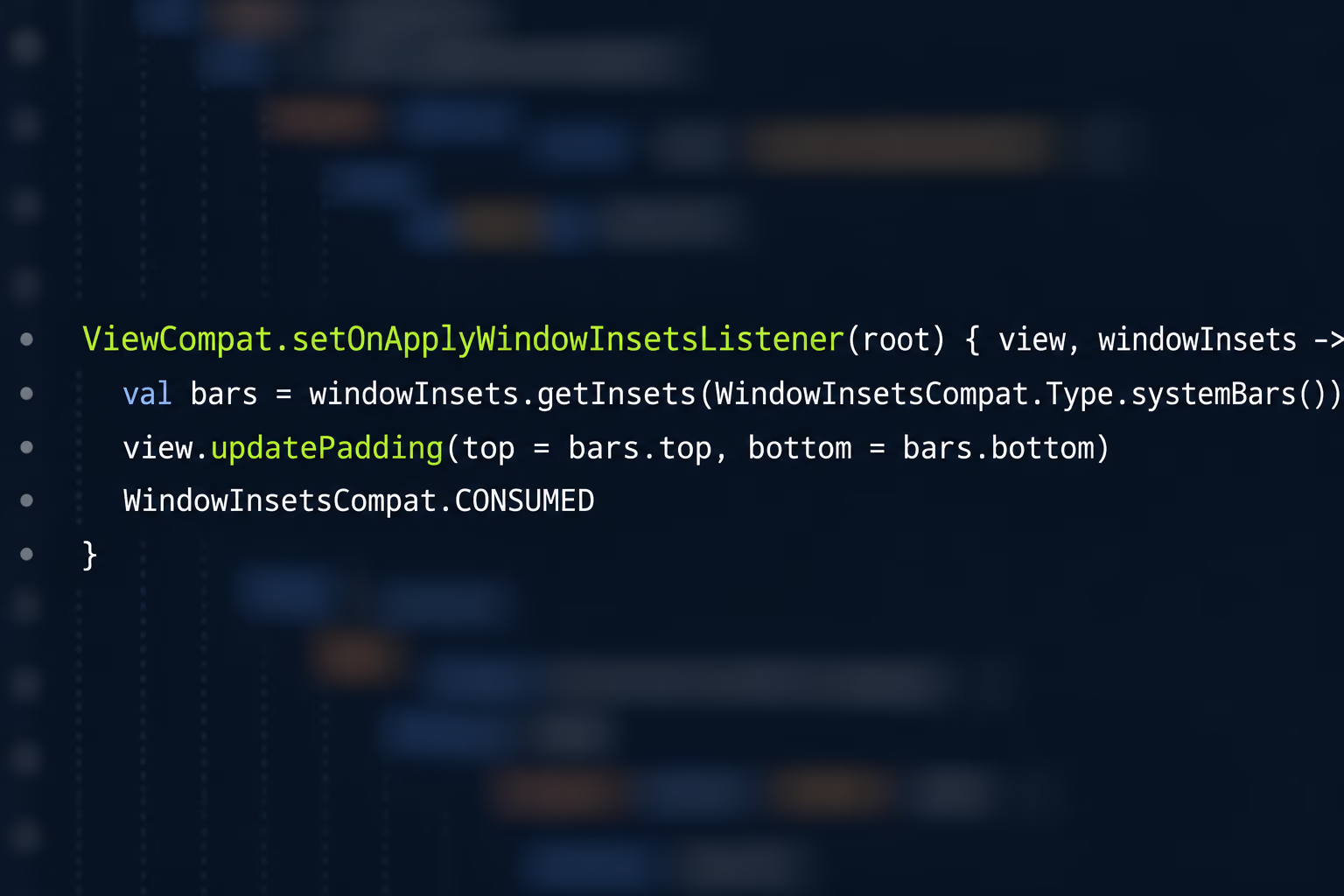
Returning CONSUMED stops the insets from reaching child views, which avoids doubled padding. Google documents one trap with it: on Android 10 and earlier, insets aren’t dispatched to sibling views after a parent consumes them, so a sibling can still overlap the navigation bar. Calling ViewGroupCompat.installCompatInsetsDispatch before you consume the insets fixes that, and it needs AndroidX Core 1.16.0-alpha01 or later.
The table below shows who handles insets on their own and who needs your help, based on Google’s migration guidance.
| What the screen uses | Handles insets itself? | What you add |
|---|---|---|
| BottomNavigationView, BottomAppBar, NavigationRailView, NavigationView | Yes | Nothing |
| AppBarLayout | No | android:fitsSystemWindows="true" for the top inset |
| BottomSheet, SideSheet, custom containers | No | An insets listener that applies padding |
| RecyclerView | No | The same listener, plus clipToPadding="false" |
| Compose Material 3 TopAppBar, BottomAppBar, NavigationBar | Yes | Nothing |
| Compose Material 2 components | No | The windowInsets parameter, or contentWindowInsets on Scaffold |
If a screen needs a colored bar behind the status area, don’t go back to setStatusBarColor. Google’s guidance is to place a view behind the system bar and size it with the status bars inset, or with the tappable element inset for the three-button navigation bar. That gives you the branded strip back without fighting the platform.
How do you handle it in Compose and React Native?
In Jetpack Compose the answer depends on which Material library the app imports, and a project that mixes both is common in inherited code. Material 3 components such as TopAppBar, BottomAppBar and NavigationBar handle insets automatically, and the Material 3 Scaffold reduces the work further. Material 2 components don’t, so you pass the insets in by hand. From androidx.compose.material 1.6.0, the windowInsets parameter on the app bars and navigation components accepts them, and Scaffold takes contentWindowInsets. Custom composables need padding applied from one of the WindowInsets types, and the safe drawing and safe content types are the usual choices for screens that hold text and buttons.
React Native needs a different conversation, because the framework doesn’t solve this for you. The community discussion on Android 15 enforcement is clear that the SafeAreaView in React Native core only works on iOS and offers no control over its behavior. It recommends react-native-safe-area-context for insets and points to react-native-edge-to-edge, a library backed by Expo, for the other gaps such as bar colors and icon styles. It also notes that the system bars become transparent and you can no longer set the status bar color from JavaScript. Developers in that thread have reported two further problems that matter on an old app: a Play Console message saying edge-to-edge may not display for all users, and keyboard avoidance breaking with adjustResize once the navigation bar goes transparent. Both are user reports and not documented behavior, so verify them on your own build before you plan around them.
A React Native app that’s several versions behind adds a prerequisite, because these libraries may not support an old framework release, and the target bump can turn into a framework upgrade first, which is the situation our piece on a React Native upgrade covers. Other cross-platform wrappers draw their own screens too, so read your framework’s release notes for its Android 15 handling and don’t assume the platform fix reached you.
Which screens break first in an inherited app?
The ones nobody opens are the first to break. Google’s own checklist says there may be lower-traffic screens with occluded UI and names onboarding screens, sign-in screens and settings pages. That pattern is common in inherited apps: the main feed and the tab bar get fixed first because the developer lives in them, while the password reset screen and the legal text page keep their old fixed padding and sit under the clock.
A useful order of work is to fix the screens by how much damage they do when broken. A sign-in screen with a hidden submit button blocks every new user, and a settings screen with a clipped sign-out row costs a handful of support emails. Checkout and payment screens come right after sign-in, since a covered pay button loses revenue immediately. Screens with text fields come next, because the keyboard interacts with the bottom inset in ways that only show up on a real device or a proper emulator run.
Look for three code patterns while you read the project. Hard-coded top padding such as 24dp or a status bar height constant is the first, and every instance is now wrong or doubled. Calls to setStatusBarColor, setNavigationBarColor or statusBarColor styles are the second, since they do nothing on Android 15 and mislead the next developer. The third is any activity with its own full screen theme, such as a camera view or a media player, where the app already handled the bars in its own way and may now conflict with the enforced behavior.
When the damage is wide and the app has weak structure, ask whether the screens are worth patching at all. A project with duplicated layouts and no shared base activity can need the same fix thirty times. That’s the point where our note on rewrite versus refactor matters, because a shared screen scaffold fixes insets once and keeps them fixed.
How do you test edge-to-edge before Google Play sees it?
You test on the versions that behave differently and in both navigation modes, and you use emulators for it because they’re cheap and repeatable. Set up one emulator on Android 14, one on Android 15 and one on Android 16, then switch each between gesture navigation and three-button navigation. That’s six combinations, and it covers the cases where the app targets one level and runs on another, which is the opt-out trap described earlier.
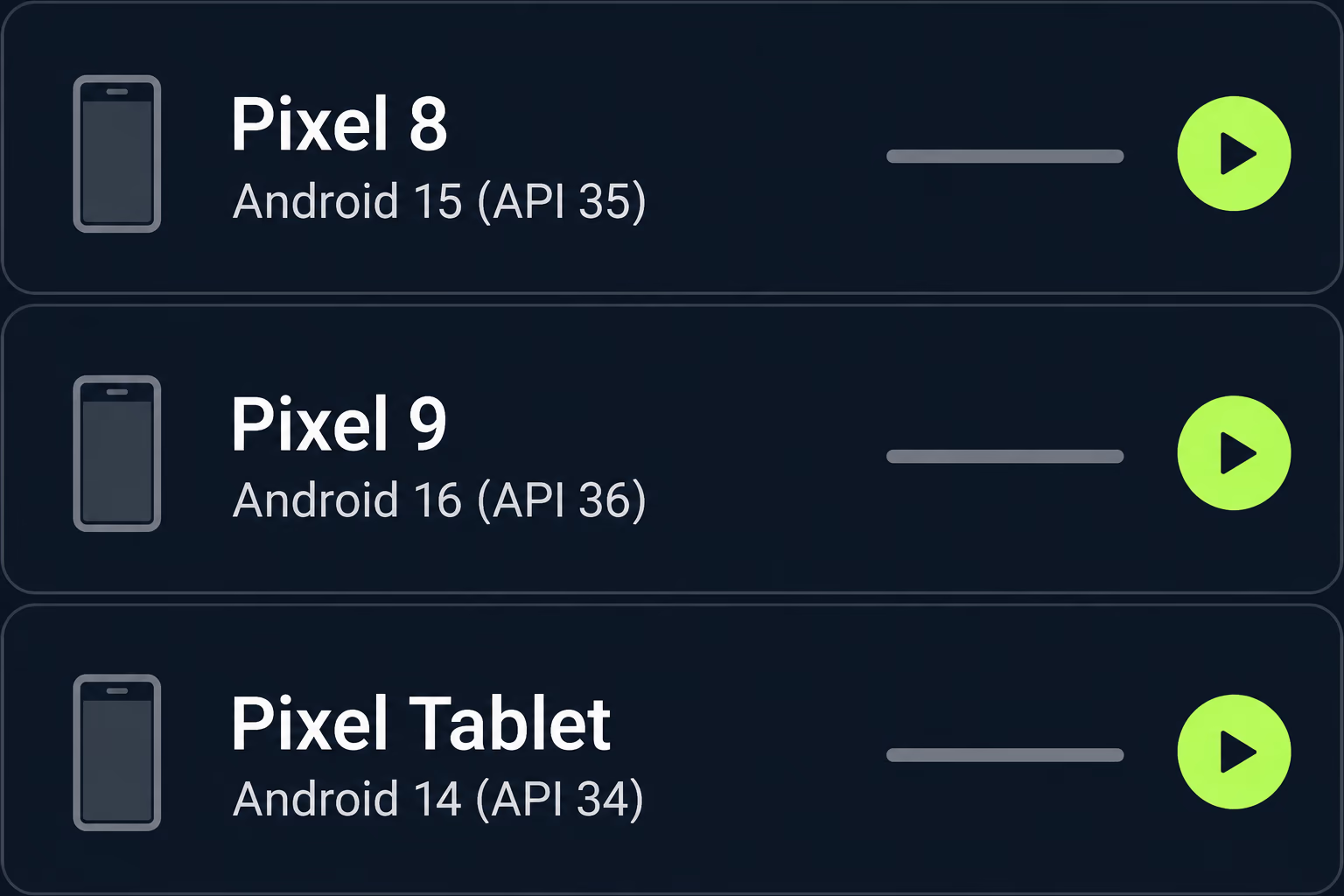
Walk every screen in portrait first and in the sideways orientation second, and look for three symptoms: content under the status bar, content under the bottom bar, and anything that moves or hides when the keyboard opens. Then add a tablet emulator, because Android 16 also ignores orientation and resizability restrictions on displays at least 600dp wide, which means a layout that was safe in portrait on a phone may now rotate and stretch on a large screen. Our mobile app testing checklist has the full release pass these checks belong in.
Don’t judge the result from screenshots alone, because a button can look fine under a transparent bar while still being untappable. Tap every control that sits within a thumb’s width of an edge, including the back arrow, the bottom tabs and any floating button, and write down which screens you covered so the next developer doesn’t repeat the walk from zero.
What should you decide before you start fixing screens?
Decide whether the app is staying on its current structure, because that choice sets the cost of everything above. For a Compose app on Material 3 the work is often a few screens and an afternoon of checking. For a Views app with Material Components it’s a sweep of containers and lists, with each fix small and repetitive. For an app held together by fixed padding and old libraries, the inset work is only the first bill, and the build tooling and framework versions are the second.
The honest way to size it is to audit the code before quoting anything, which means counting the activities, finding the custom themes, listing the screens with text fields and bottom actions, and checking which UI library each part uses. RapidLabs does that as the first step of mobile app stabilization for apps that arrive from a previous developer, because a number given without reading the code is a guess. RapidLabs also takes over apps outright through app takeover when there’s no team left who knows the project.
Whichever route you take, remove the opt-out attribute last and not first, and release the change behind a normal staged rollout so the Play vitals data tells you if a device family is hurting.
Frequently asked questions
What does edge-to-edge mean on Android?
It means your app draws its content across the whole screen, including the area behind the status bar at the top and the navigation bar at the bottom. Before Android 15 an app could stay inside a safe rectangle that the system reserved for it. Once an app targets API level 35 the system stops reserving that rectangle, so the app is responsible for keeping buttons, titles and text fields out from under the system bars.
Why did my Android app break after I changed the target SDK to 35?
Because Android 15 enforces edge-to-edge for any app that targets API level 35 or higher, and an old app was never written to handle that. The top bar slides under the status bar, bottom buttons slide under the gesture handle or the three-button bar, and the status bar and navigation bar colors you set in code no longer apply. Nothing in your logic changed, only the area your layouts are allowed to occupy.
Can I turn off edge-to-edge in my Android app?
Only for a limited time, because an app that targets API level 35 can set the windowOptOutEdgeToEdgeEnforcement attribute to opt out, but Android documents that attribute as deprecated and disabled for apps targeting API level 36 when they run on Android 16. Because Google Play now requires new submissions and updates to target API level 36, the opt-out is a short delay and not a plan.
How do I fix edge-to-edge in an old Views based Android app?
Call enableEdgeToEdge in each activity so older Android versions behave the same way, then apply system bar insets to the views that touch the screen edges. Material Components such as BottomNavigationView handle insets for you, AppBarLayout needs android:fitsSystemWindows set to true, and bottom sheets, side sheets and custom containers need a window insets listener that adds padding. A RecyclerView also needs clipToPadding set to false so its content scrolls under the bar and not into it.
Does React Native handle Android edge-to-edge automatically?
Not on its own, because the SafeAreaView that ships with React Native core only works on iOS, so React Native's own discussion on Android 15 recommends the community react-native-safe-area-context library for insets. The same discussion points to react-native-edge-to-edge, a library backed by Expo, for the other gaps. Teams have also reported keyboard avoidance problems after enabling it, so test every screen with a text field.
How do I test edge-to-edge before releasing the app?
Run the app on emulators for Android 14, Android 15 and Android 16, in both gesture navigation and three-button navigation, because the two modes treat the bottom bar differently. Open every screen, with special attention to sign-in, onboarding and settings, since those are visited least and fixed last. Check both orientations on a phone, then one tablet, because Android 16 also ignores orientation locks on large screens.
Stuck on a release, a crash, or an app nobody owns?
RapidLabs maintains, stabilizes and takes over existing iOS and Android apps. Send the app link, the stack, and what is going wrong, and you will get a plain answer on whether you need help at all.
Talk to a senior engineer about your app