App Store Screenshot Sizes for 2026 Releases
Apple requires one iPhone screenshot set at 1320 by 2868 pixels and, for apps that also run on iPad, one iPad set at 2064 by 2752 pixels. Everything else in the size list is optional, because App Store Connect scales those two sets down to cover every other display size automatically. Files must be JPEG or PNG with no alpha channel, and you can upload between one and ten per size. Google Play works differently and asks for at least two screenshots per device type, sized anywhere between 320 and 3840 pixels, with the longer side no more than double the shorter one.
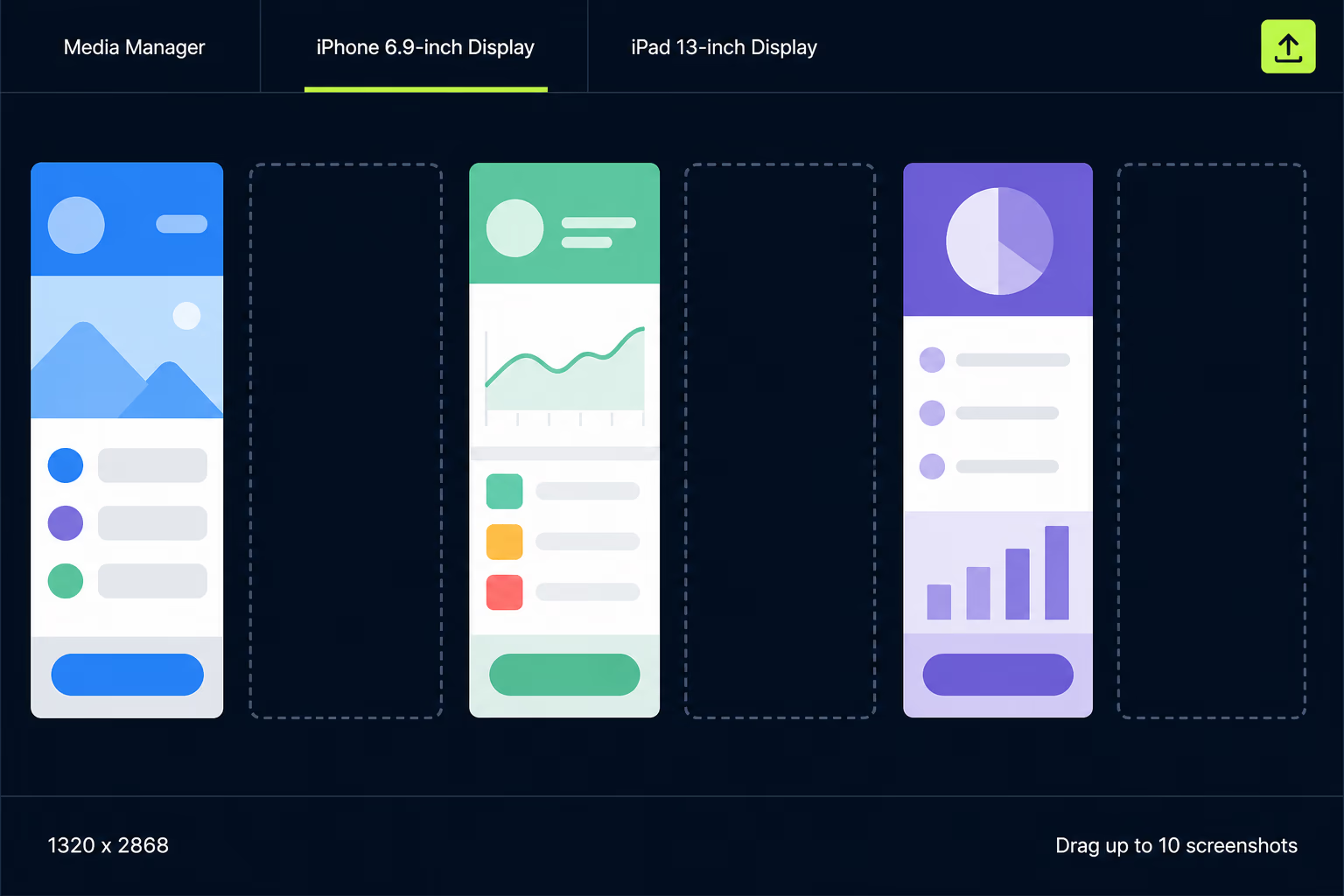
Most published size lists were written for a device lineup that Apple has already moved on from, which is why the numbers you find rarely agree. This one works from Apple’s current specification and Google’s own asset requirements, and it’s written for the situation our clients are usually in, which is shipping an update to an app that already exists rather than launching something new.
What screenshot sizes does the App Store require right now?
Two sizes are mandatory and the rest are convenience. An app that runs on iPhone needs the 6.9-inch set at 1320 by 2868 pixels in portrait, or 2868 by 1320 sideways. An app that also runs on iPad needs the 13-inch set at 2064 by 2752 portrait, or 2752 by 2064 the other way round. Provide those two and your listing is complete for the entire iPhone and iPad range, regardless of how many devices Apple currently sells.
There’s one substitution worth knowing about. If you don’t provide the 6.9-inch set, the 6.5-inch size at 1284 by 2778 pixels becomes required in its place, which is how older listings that predate the newest devices stay valid. That’s a fallback rather than a recommendation, since a set built for 6.5-inch gets scaled up in places where the larger screens are shown, and the result looks softer than it should on the phones most people are buying.
The technical rules around the files themselves are short. App Store Connect accepts .jpeg, .jpg and .png, and rejects anything containing an alpha channel or transparency, which catches a surprising number of exports from design tools that leave a transparent layer behind. You can upload between one and ten screenshots per size, and the first three are what most people see before they scroll, so the ordering matters more than the count.
| Display size | Portrait pixels | Status |
|---|---|---|
| iPhone 6.9-inch | 1320 x 2868 | Required |
| iPhone 6.5-inch | 1284 x 2778 | Required only without the 6.9-inch set |
| iPhone 6.3-inch | 1179 x 2556 | Optional, scaled from 6.5-inch |
| iPhone 6.1-inch | 1170 x 2532 | Optional, scaled from 6.5-inch |
| iPad 13-inch | 2064 x 2752 | Required for iPad apps |
| iPad 12.9-inch | 2048 x 2732 | Optional, scaled from 13-inch |
| iPad 11-inch | 1488 x 2266 | Optional, scaled from 13-inch |
Which sizes does Apple scale for you, and which does it not?
Apple fills every optional size by scaling the set above it in the chain, and the chain runs all the way down to hardware that stopped shipping years ago. Your 6.9-inch images cover the 6.5-inch size, which in turn covers 6.3-inch and 6.1-inch, which covers 5.5-inch, which covers 4.7-inch, which covers 4-inch and finally 3.5-inch. The iPad chain works the same way, with the 13-inch set covering 12.9-inch and 11-inch, and 12.9-inch covering 10.5-inch and 9.7-inch below it.
The practical result is that a single set of five or six well-made images at 1320 by 2868 does the entire job for iPhone. Uploading a separate set per display size is a habit left over from the years when Apple genuinely required several, and teams still budget design time for it out of memory rather than necessity. You’d only upload a specific size deliberately, when you want different imagery shown on particular devices, which is a marketing decision rather than a technical requirement.
What Apple doesn’t scale for you is the other platforms, since each one has its own separate requirement. A Mac app needs screenshots in a 16:10 shape, with 1280 by 800 as the smallest accepted and 2880 by 1800 at the top. Apple TV apps need 1920 by 1080 or 3840 by 2160, and Apple Vision Pro apps need 3840 by 2160. Apple Watch has its own list that runs from 312 by 390 for Series 3 up to 422 by 514 for Ultra 3, and whichever watch size you pick has to stay consistent across every localization on the listing.
What does Google Play require instead?
Google Play doesn’t work from a list of device sizes at all, and instead sets boundaries your images have to fall inside. You need at least two screenshots across different device types, and you can upload up to eight for each device type you support. The smallest side of any image must be at least 320 pixels, the longest side no more than 3840, and the longer side can never exceed twice the shorter one, which quietly rules out very tall or very wide compositions.
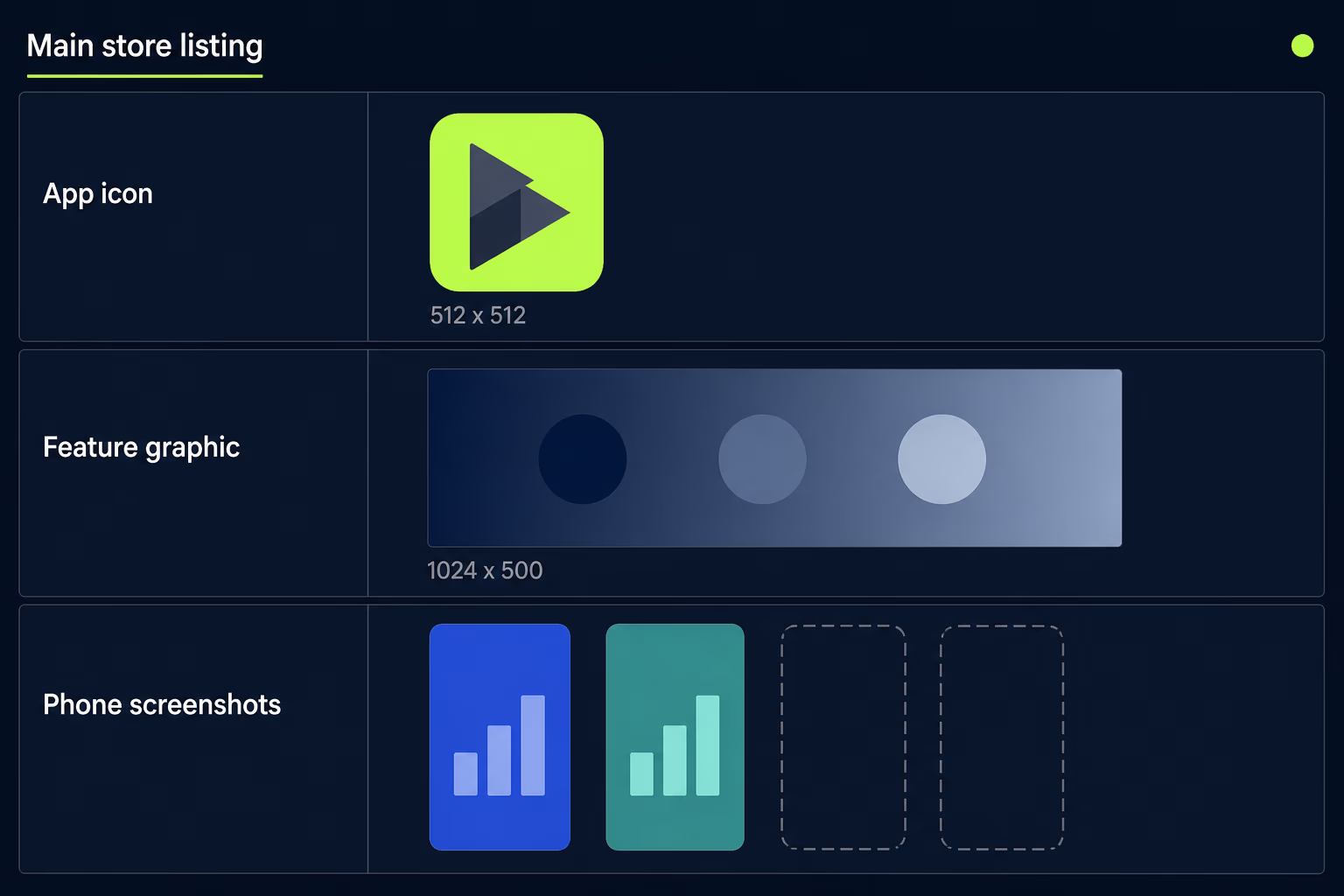
Two other assets sit alongside the screenshots and block the listing if either is missing. The app icon is 512 by 512 pixels as a 32-bit PNG with alpha, capped at 1024KB, and the feature graphic is 1024 by 500 pixels as a JPEG or 24-bit PNG with no alpha at all. Those alpha rules run in opposite directions on the same page, which is exactly the sort of detail that costs an afternoon when nobody reads the requirement carefully.
Beyond the minimum, Google ties promotional placement to how much you upload. To be eligible for the large format recommendations on the store, an app needs at least four screenshots at a minimum of 1080 pixels, in a 16:9 horizontal or 9:16 portrait shape. Tablet and other large screen listings ask for at least four screenshots between 1080 and 7680 pixels in those same shapes. Wear OS needs at least one square screenshot of 384 by 384 pixels or larger, and Android TV needs at least one TV screenshot plus a banner at 1280 by 720. Our write-up on Google Play target API level covers the other side of Play Console compliance, which tends to bite the same teams in the same week.
What do you actually have to upload for an update to an existing app?
In most cases nothing at all, because screenshots belong to the store listing rather than to the build you’re submitting. A version update inherits whatever media is already there, and you can ship security fixes, SDK bumps and bug releases for years without opening the media manager once. Teams preparing a maintenance release often assume new screenshots are part of the work, and it’s one of the first line items RapidLabs removes from a release plan once we check what the listing already holds.
Three situations do force a change. The first is Apple retiring a display size that your listing was relying on as its source, which removes the fallback and leaves you with an empty required slot. The second is adding a device family, so an iPhone app that gains iPad support suddenly needs a 13-inch set that never existed before. The third is a redesign significant enough that the existing images no longer show what someone downloads, which moves the problem from validation into review territory.
That last one is worth being honest about with yourself, because it’s a judgement call rather than a rule. Screenshots showing an older visual style of the same features are fine and extremely common. Screenshots showing a navigation structure the app no longer has, or a feature that’s been removed, are the kind of mismatch that gets flagged as inaccurate metadata. Our breakdown of App Store rejection reasons goes through how that category is applied in practice.
How many screenshots is that once you count localizations?
Multiply everything by the number of localizations you’ve added, because App Store Connect stores a separate screenshot set for each one. A listing with five images at two sizes looks like ten files until you add six languages, at which point the full set is sixty. Nobody plans for that number, and it’s the reason localized screenshots so often end up years out of date while the default set stays current.
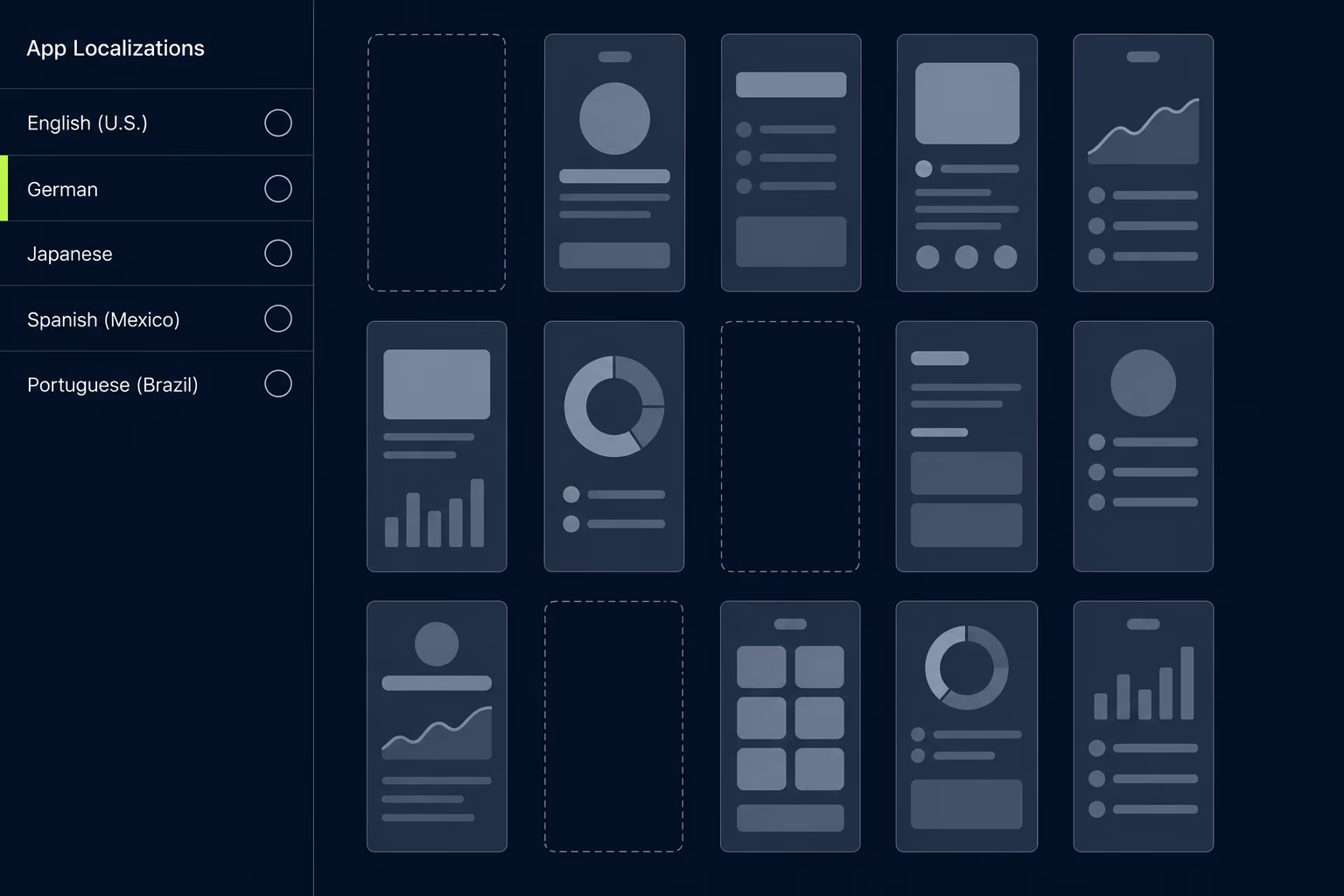
Apple gives you a way out, which is that any localization without its own screenshots falls back to your default one. You can run a listing in twelve languages with a single English screenshot set, and the store will show those images everywhere. Localized images genuinely help conversion when the text on them carries part of the sales message, so the fallback isn’t the right answer for everyone. It is the right answer when nobody on the team is committed to maintaining twelve versions of the same five images as the app changes.
Our recommendation for a small team is to localize screenshots for the two or three markets that actually produce revenue and let everything else fall back. That keeps the maintenance load at a level someone will realistically sustain, and it avoids the situation where a French listing is still advertising a feature you removed eighteen months ago. Google Play behaves the same way, falling back to your default language listing wherever a translation is missing.
What gets a screenshot set rejected or blocked?
Two different things stop a screenshot set, and they happen at different stages. Upload validation is the first, and it’s immediate and mechanical. Wrong pixel dimensions, an alpha channel left in the export, an unsupported file format or an image outside Google’s ratio boundaries all fail the moment you try to add them, with an error naming the problem. Frustrating as that is, it’s the good kind of failure, because you find out in seconds rather than after waiting in a review queue.
App Review is the second and slower one. Apple treats screenshots as metadata that has to accurately represent the app, so the failures here are about content rather than pixels. Images of features that aren’t in the build, screens from a different product, and mockups showing a state no user can actually reach are the recurring causes. Marketing text and device frames around your content are entirely acceptable, which is what nearly every listing on the store does, so this isn’t an argument for plain unedited captures.
There’s a timing consequence worth planning around. A metadata rejection on screenshots restarts your position in the review queue, so a set nobody checked carefully can add several days to a release that was otherwise ready. Our article on App Store review time has the current expectations for how long that costs you. When a release is time-sensitive, reviewing the screenshots against the actual build before submitting is a five minute task that protects the schedule.
How do you produce the files at the right sizes without a designer?
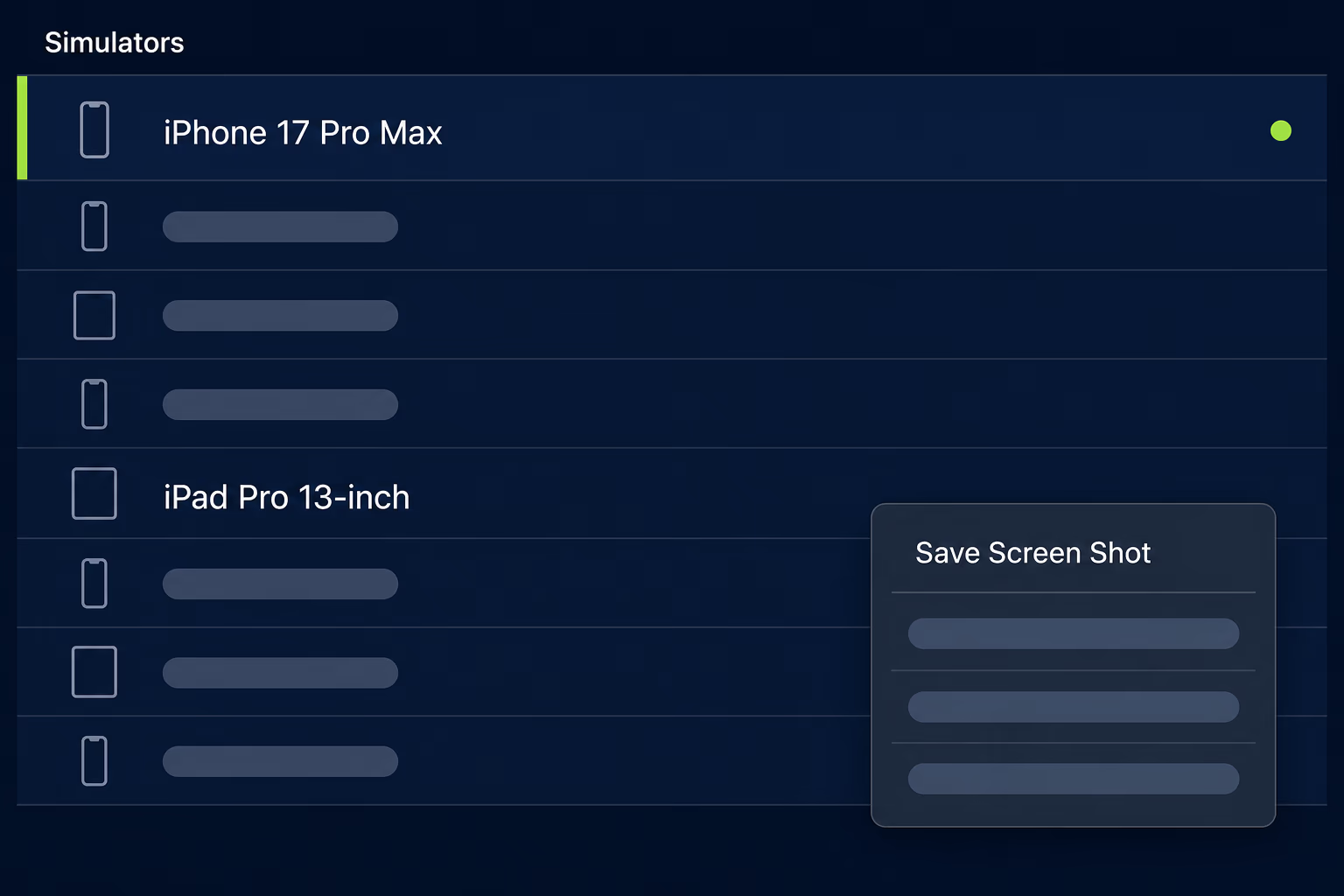
The Simulator gives you correctly sized captures for free, and it’s the fastest route for a team without design support. Run the app on an iPhone 17 Pro Max simulator for the 6.9-inch size and an iPad Pro 13-inch simulator for the iPad set, then use the Save Screen Shot command to write a file at exactly the pixel dimensions Apple expects. No resizing step is involved, which removes the most common source of validation errors.
For anything beyond raw captures you’re either adding text and frames in a design tool or automating the whole sequence. Automation is worth setting up once a listing has several languages, since a script that drives the app to each screen and captures it turns a full localized regeneration into a single command. The setup cost is real, so the honest threshold is somewhere around three localizations or a release cadence fast enough that screenshots go stale between updates.
One detail catches people out on Android. Because Google works from ratio boundaries rather than fixed sizes, a capture from almost any modern phone or emulator already qualifies, so there’s no equivalent hunt for exact dimensions. The constraint that actually bites is the rule about the longer side being no more than twice the shorter one, which some very tall phone captures brush against once you add a header or footer to the image.
Getting your next submission through
Start by treating the two required sizes as the whole job, since 1320 by 2868 for iPhone and 2064 by 2752 for iPad genuinely cover the App Store, and two screenshots per device type inside Google’s ratio boundaries genuinely cover Play. Anything past that is a marketing choice you’re making deliberately, not a requirement someone imposed on you. Most of the effort teams spend here goes into producing sizes that Apple would have generated for them.
Check Apple’s specification page rather than a size list from a blog, including this one, whenever you’re about to generate files. Device lineups change every year and the required sizes move with them, which is why so many published numbers still name dimensions that no longer appear in the specification at all. A wrong number costs you a validation error and a regenerated set, and it happens to teams who did everything else correctly.
Then look at what your current listing already has before assuming you need new images. An app in maintenance usually needs no screenshot work whatsoever for a given release, and the work only becomes real when a size is retired, a device family is added, or the app has changed enough that the pictures are misleading. At RapidLabs we see plenty of release schedules where screenshot production was budgeted out of habit and quietly dropped once someone checked. If your next release is stuck on store requirements rather than on the code, you can talk to a senior engineer about your app, or read how we approach an app maintenance audit before committing to a plan.
Frequently asked questions
What App Store screenshot sizes are required in 2026?
Apple requires one iPhone set at 1320 by 2868 pixels, which is the 6.9-inch display size, for any app that runs on iPhone. An app that also runs on iPad needs a second set at 2064 by 2752 pixels, which is the 13-inch display size. Every other iPhone and iPad size listed in App Store Connect is optional, and Apple generates the smaller versions from the sets you upload. If you skip the 6.9-inch set, the 6.5-inch size at 1284 by 2778 pixels becomes required instead.
Do I need to upload screenshots for every iPhone size?
No, and uploading a set for every size is the most common waste of time in a store listing. Apple scales your 6.9-inch screenshots down to cover the 6.5-inch size, then derives 6.3-inch and 6.1-inch from that, and continues down the chain to the oldest supported devices. You only upload a specific size when you want a different image shown there, which is rare outside marketing campaigns aimed at particular devices. One well-made set at the largest size covers the entire iPhone range.
What are the Google Play screenshot requirements?
Google Play needs at least two screenshots across different device types and accepts up to eight for each device type you support. The smallest side of any screenshot must be at least 320 pixels, the longest side no more than 3840 pixels, and the longer side can never be more than twice the shorter one. Files must be JPEG or 24-bit PNG with no alpha channel. Tablet and large screen listings need at least four screenshots between 1080 and 7680 pixels, in a 16:9 horizontal or 9:16 portrait shape.
Do I have to update screenshots when I release a new app version?
Not usually, because screenshots belong to the store listing rather than to the build, and they stay in place through as many version updates as you like. Three situations force a change. Apple retiring a display size you were relying on removes your fallback source, adding a new device family creates an empty required slot, and a redesign that makes the old images misrepresent the app puts you at risk during review. Outside those cases, a maintenance release ships without touching the media at all.
Why do published App Store screenshot sizes disagree with each other?
Most size lists on the web were written for an earlier device lineup and never revised, so they still name 1290 by 2796 and 1242 by 2688 as the required iPhone dimensions. Apple's current specification doesn't list 1290 by 2796 anywhere, and 1242 by 2688 has been replaced by 1284 by 2778 for the 6.5-inch size. Uploading against an outdated list produces a validation error in App Store Connect rather than a rejection, which is faster to discover but still blocks the submission. Always check Apple's own screenshot specification page before generating files.
Can I use the same screenshots for every language on my listing?
Yes, and Apple falls back to your default localization for any language where you haven't uploaded a separate set. Adding a localization creates its own screenshot slots, so a listing in six languages can quietly turn five images into thirty files if you fill every slot. Localized screenshots do help conversion when the text on them is part of the sales pitch, but only if someone maintains the translations as the app changes. A stale set in a language nobody checks is worse than the default one.
Will screenshots with marketing text get my app rejected?
Marketing text and device frames around your app content are allowed and used by nearly every listing on the store. The problem starts when the screenshots stop showing what the app actually does, which App Review treats as inaccurate metadata. Screens of features that don't exist yet, images of a different product, and heavily edited mockups that no user could reach are the versions that draw a rejection. A safe set shows real screens from the app with text added around or over them.
Have a product decision to make?
RapidLabs helps founders and operators shape, build, and launch focused software.
Email the studio