Provisioning Profile Doesn't Include Certificate
When a provisioning profile doesn’t include the signing certificate, it means Xcode is signing your build with a certificate that isn’t on the list stored inside the profile it chose, so the signing step refuses to continue. Nothing is necessarily expired or broken in the account. The profile, the certificate and the build settings simply disagree, and the fix is to find out which one is wrong and make the three match again.
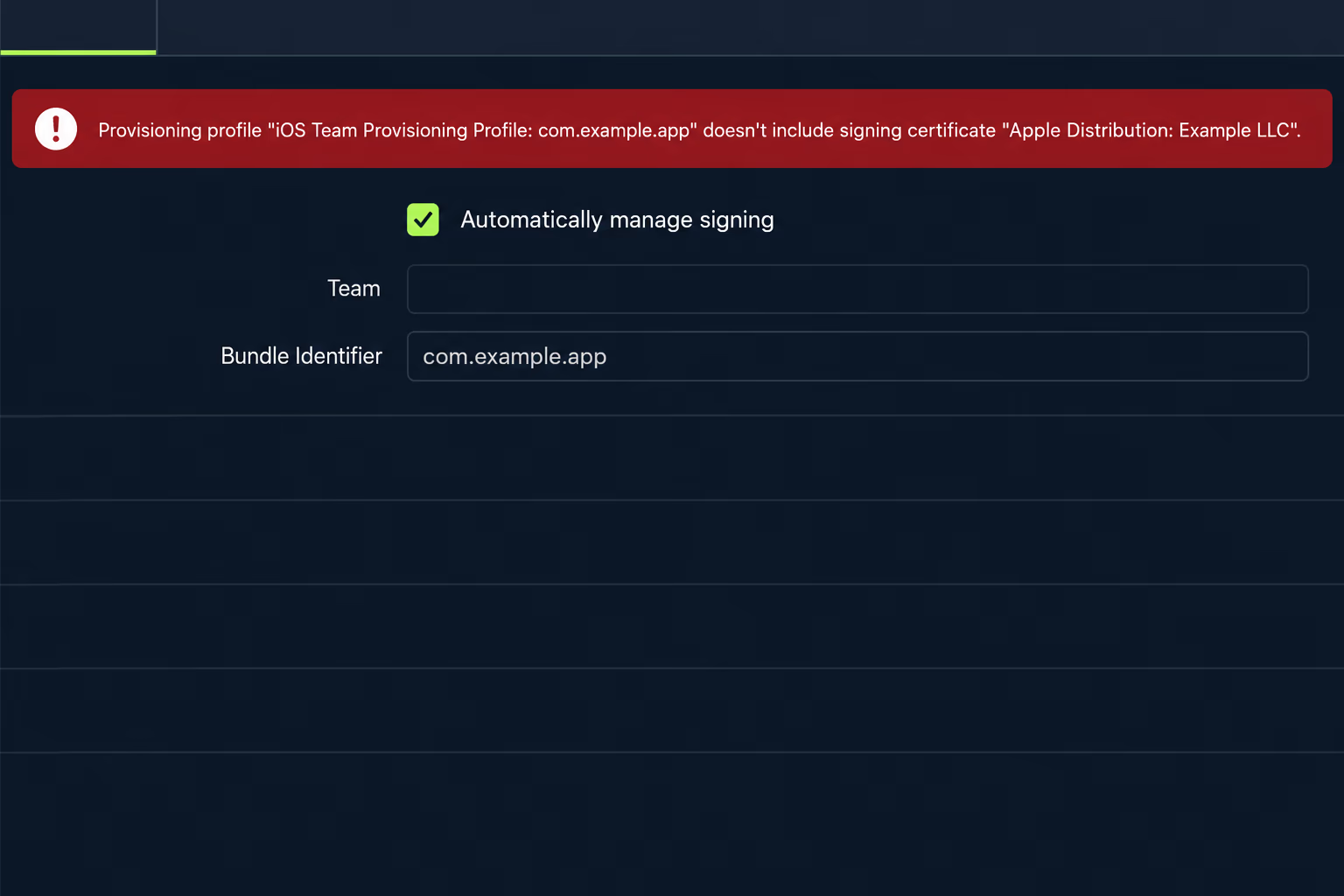
The top results for this error are mostly GitHub issues and forum threads. One fastlane issue shows the exact message and ends with the reporter saying fastlane match sorted it out, without explaining why. Another commenter in the same thread recreated the profiles, saw the certificate listed in App Store Connect, and still got the failure, and the thread never reaches a root cause. This article does the part those threads skip, which is separating the four causes that produce the same sentence and giving you a way to tell them apart in a few minutes. It is written for people who have inherited an iOS app and don’t know who set up the signing, which is the starting point whenever RapidLabs takes over an existing app.
What does the error actually check?
The check is a simple membership test: the certificate used to sign must appear in the certificate list inside the profile. Apple’s technical note on provisioning profiles says that every profile has a property holding the certificates of each developer who can sign code covered by the profile. If the certificate you signed with isn’t in that list, the profile can’t vouch for you, and Xcode stops with the message you are seeing.
Two details from Apple’s help pages explain why this goes wrong so often. An App Store provisioning profile contains a single distribution certificate, so there is no spare slot for a second one. A development profile is different, because Apple’s steps say to select one or more development certificates, which means a development profile can list the certificates of several people at once.
That difference matters on a team that has changed hands. Apple states that development certificates belong to individuals, while distribution certificates belong to the team and can only be created by the Account Holder or an Admin. A development profile built around the previous developer’s certificate keeps naming that certificate long after the person has left, and the private key that goes with it left on their laptop.
Which of the four causes is yours?
Almost every case of this error falls into one of four buckets, and each one has a different symptom and a different fix. The table below is the quickest way to tell them apart before you touch anything.
| Cause | What it looks like | Where the fix lives |
|---|---|---|
| The certificate was never added to the profile | The profile was created before the certificate existed, or the certificate was replaced and the profile wasn’t edited | The profile, in the developer account |
| Wrong certificate type for the build | The error names an Apple Development certificate during an archive meant for the App Store | The signing settings of the target |
| Stale copy of the profile on disk | The portal shows the right certificate but Xcode still fails | The local profiles folder |
| The private key isn’t on this machine | The certificate exists on the team but this Mac or CI runner never held its key | The keychain, or a new certificate |
The sections below take them in the order that is quickest to rule out. Start by reading what is really inside the profile, because that turns a guess into a fact.
How do you read what’s inside a provisioning profile?
You decode it from the command line, which takes under a minute. A profile file is a property list wrapped in a signature, and Apple’s technical note gives the command that removes the wrapper. Run this against the profile named in the error, which you can find in the folder where Xcode keeps downloaded profiles.
security cms -D -i MyApp.mobileprovision -o payload.plist
plutil -extract ExpirationDate raw -o - payload.plist
plutil -extract DeveloperCertificates xml1 -o - payload.plist
The second command prints the expiry date, and Apple says every profile has that property to limit how long it stays valid, typically no more than a year. The third prints the certificates the profile accepts, as encoded data. That output is not pleasant to read, so compare it with what your Mac actually holds instead of reading it by eye.
On the Mac that is failing, list the signing identities it can really use with security find-identity -v -p codesigning. A certificate shows up there only when its private key is in a keychain, which is the detail the portal can never tell you. If the certificate named in your error isn’t in that list, you are in the fourth bucket, and no amount of editing the profile will help.
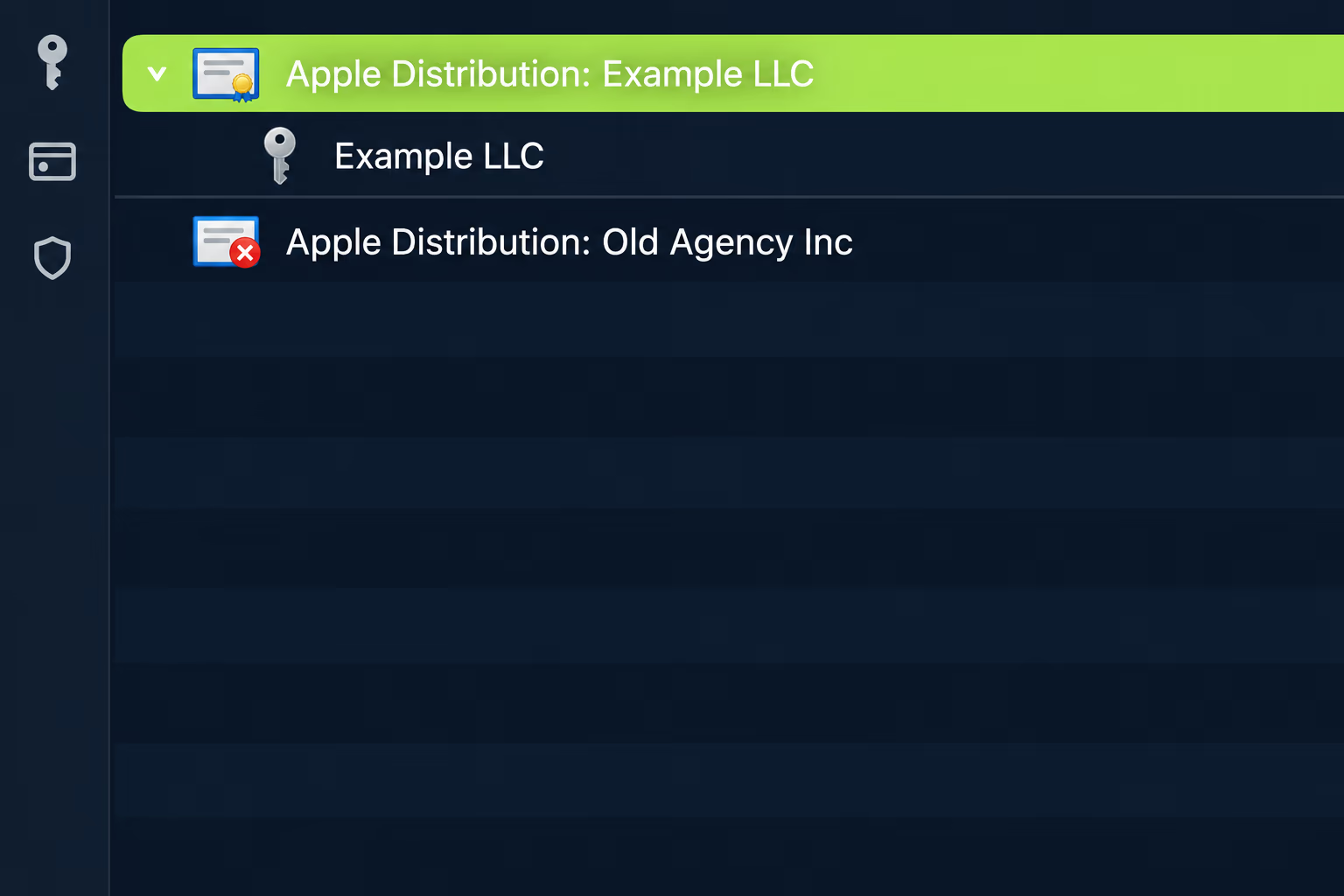
In Keychain Access, a usable signing certificate has a disclosure triangle with a private key nested under it, as in the image above. A certificate with no key beneath it is only a public record, and signing with it will fail no matter how the profile is set up.
How do you fix it with manual signing?
Edit the profile in the developer account so it lists the certificate you intend to sign with, then download it again. Apple’s help page says you can edit a profile you created to add certificates or change devices, and the same page says to download the profile in Xcode afterwards. You need the Account Holder or Admin role to do this.
Open Certificates, Identifiers & Profiles, choose Profiles, select the profile named in the error and click Edit. Tick the certificate you sign with and click Generate. If the certificate you want is missing from the list, Apple says to cancel, create the signing certificate in Xcode so that the private key is installed in your keychain automatically, and then repeat the steps.
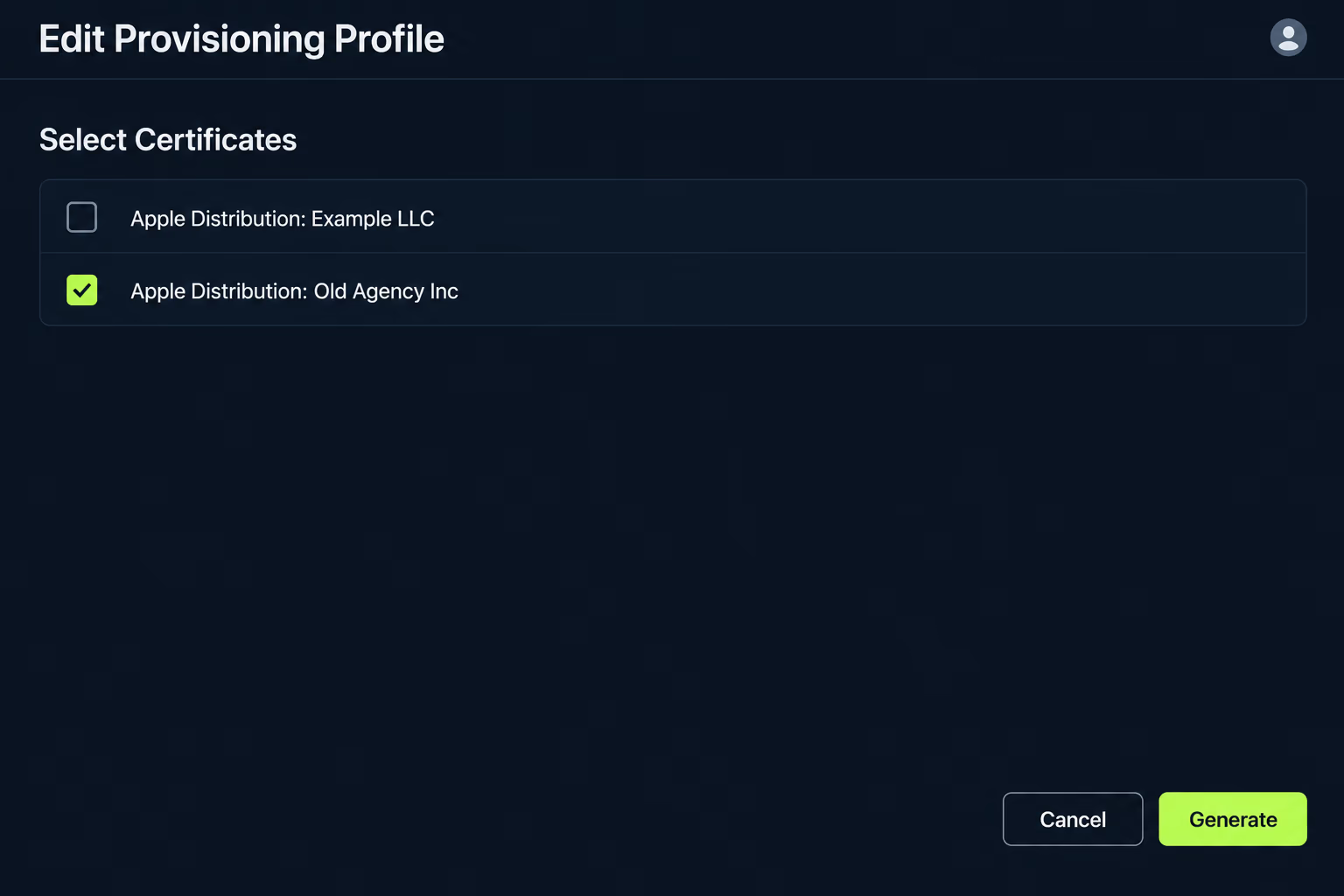
For an App Store profile there is one more thing to know. Because it holds a single distribution certificate, you are replacing the certificate rather than adding one. If your team’s current distribution certificate isn’t the one in the profile, select the right one and generate again. Our article on replacing an expired or lost iOS distribution certificate covers how to get that certificate in the first place and what revoking one does to the profiles that used it.
After you install the regenerated profile, check that the target’s release configuration points at it by name. Debug and release settings are separate, and an inherited project often has one pointing at an old profile and one at a new one, which is how an archive fails while a debug run works.
How do you fix it with automatic signing in Xcode?
With automatic signing, let Xcode rebuild the pairing and clear any stale copy that it keeps on disk. Apple’s help says that if you choose to manage signing automatically, Xcode manages the distribution profiles for you, and that by default Xcode only asks for a new profile when it cannot find a local one that satisfies the known requirements. That default is exactly why a profile you fixed in the portal can keep failing on one Mac.
The recovery Apple describes is to back up and then remove the files in the Provisioning Profiles folder under your user Library, then build again so Xcode requests a fresh one. Before you delete anything, copy the folder somewhere safe, because a profile that came from a manual process may not be easy to recreate.
If the failure only happens when building from the command line or on a build server, add the flag that lets the build talk to Apple. The xcodebuild help describes -allowProvisioningUpdates as allowing the tool to communicate with the Apple Developer website, creating and updating profiles, app IDs and certificates for automatically signed targets, and downloading missing or updated profiles for manually signed ones. It requires either an account added in Xcode’s settings or an App Store Connect authentication key passed through the -authenticationKeyPath, -authenticationKeyID and -authenticationKeyIssuerID parameters.
One more point from Apple saves confusion on inherited apps. Xcode-managed profiles don’t appear in the developer account, so if you search the portal for the profile named in the error and find nothing, that is normal for automatic signing and not a sign that it was deleted.
How do you fix it in CI with fastlane match?
Use match to hold the certificate and profile together in one place, then make the build machine only read from it. The fastlane documentation describes match as automatically repairing broken and expired credentials, and it recommends the readonly option on CI so a build never generates new ones by accident. The documented usage is fastlane match appstore --readonly, or match(type: "appstore", readonly: is_ci) inside a Fastfile.
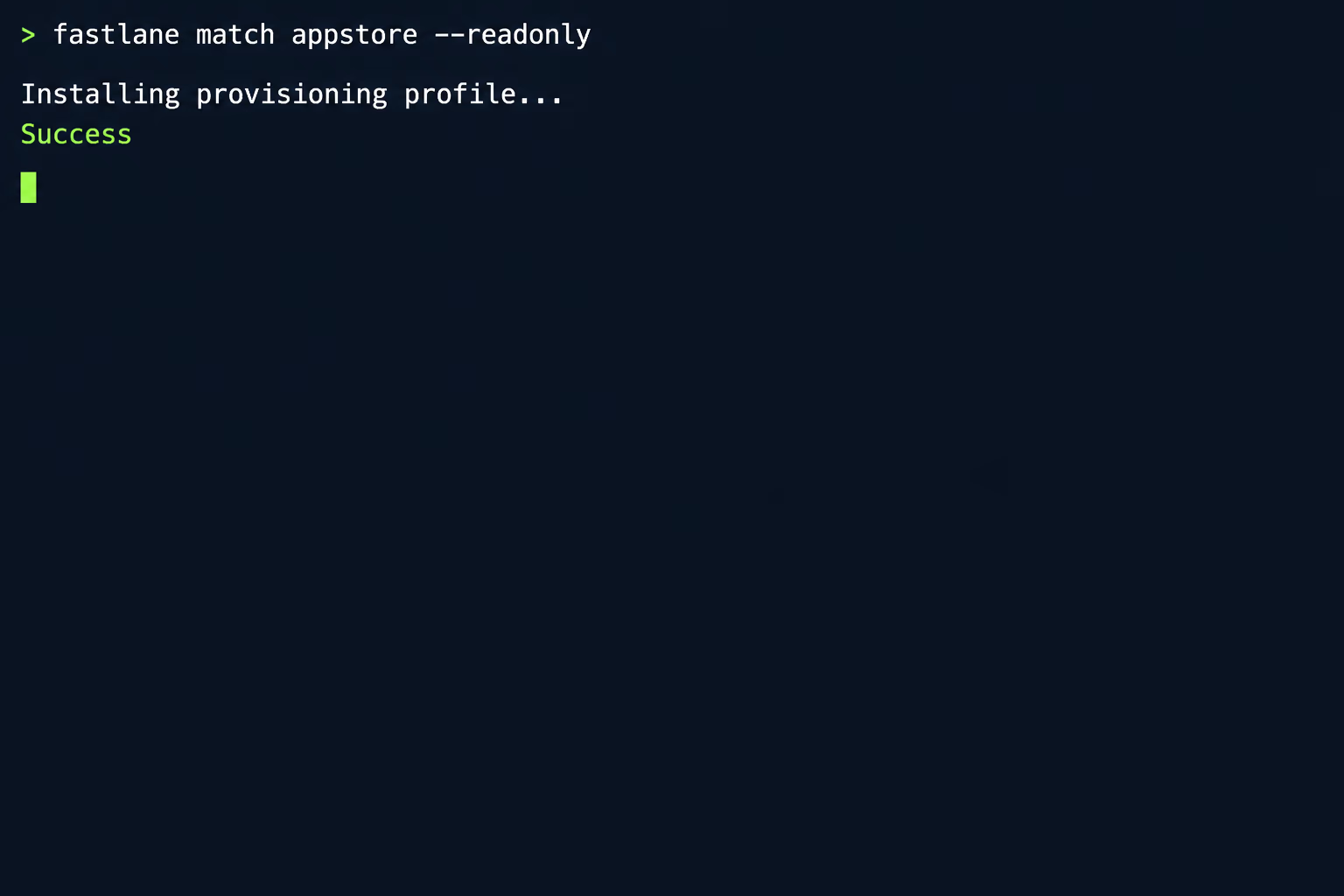
If the previous developer already had a working certificate and key, you don’t have to create new ones. The match documentation lists fastlane match import for bringing existing credentials into its storage, and a variant with --skip_certificate_matching true for when you have no access to the developer portal. That second form skips the portal check, so the docs say to make sure the files match the type and aren’t revoked or expired.
There are two options to treat with caution. The renew_expired_certs setting removes an expired certificate from storage and creates a new one, and the docs say the old one is not revoked on the developer portal. The nuke commands delete credentials, and the docs warn that builds distributed through Ad Hoc or Enterprise are disabled afterwards, while apps already in the App Store or TestFlight keep working. Never run either one against an account you haven’t audited, because a distribution certificate can be shared by other apps on the same team.
What if the private key is gone?
Create a new certificate, then put it into the profile. A certificate without its private key can’t sign anything, and Apple’s flow for a missing certificate is to create it in Xcode so the key lands in your keychain automatically, then edit the profile to include it. That is a normal, documented path and doesn’t harm apps already live in the store.
The one thing to confirm first is whether the old key is really lost. Ask whoever built the app before you, and check any backup or password manager where a certificate export might live, because a file with the extension .p12 contains both the certificate and its key. If nobody has one, you aren’t blocked, since Apple lets the Account Holder or an Admin issue a replacement.
Be careful about revoking the old certificate as a tidy-up step. Apple states that provisioning profiles containing a revoked certificate stop being valid, and other apps on the same team may still depend on it. Our notes on what breaks after an Apple app transfer go into how team-level assets get orphaned when ownership changes, which is the usual origin of a missing key.
Why does it keep happening on an inherited app?
Because signing assets are tied to people and machines, and an inherited app usually has neither. The development certificate belongs to someone who has left, the profile lists that person’s certificate, the distribution certificate was exported once to a laptop that has since been wiped, and the build settings reference profiles by names nobody recognises. Each fix above works, and then the same error returns the next time a profile expires or a teammate joins.
The other recurring cause is expiry. Since a profile is typically valid for no more than a year, a project that went quiet for a year comes back with every profile stale at the same moment. The ExpirationDate check from the decoding step takes seconds and is the cheapest way to avoid blaming the wrong thing.
A related release blocker is the build number rule, which fails uploads for a different reason after signing succeeds. If you hit that next, our article on CFBundleVersion rules and why uploads get rejected explains it.
How do you stop it breaking the next release?
Write the signing setup down, put one copy of the credentials in a shared store, and give the team a documented way to renew them. In practice that means choosing one signing approach per project, either automatic signing with an App Store Connect authentication key for CI or match with a private storage location, and removing the other. Mixed setups are where profiles and certificates drift apart.
Keep a short record of the certificate names, the profile names, the App ID, which team role created each one and when the profiles expire. Put the earliest expiry date in the team calendar well ahead of time, because the error shows up during a release rather than during the quiet weeks. If the app has no source or credentials escrow, source code escrow for apps is worth reading for what it covers and what it misses on the signing side.
If you’d rather have someone review the whole signing chain than patch one error, RapidLabs does this as part of taking over an existing app and in the app maintenance audit, where the signing assets, the profiles and the release configuration get checked together. Which fix applies to your app depends on what the audit finds, so there is no promise of a fixed outcome before someone has looked at your account.
Frequently asked questions
What does 'provisioning profile doesn't include signing certificate' mean?
It means the certificate Xcode is using to sign your build is not on the list of certificates stored inside the provisioning profile it picked. The build, the profile and the certificate each exist, but they don't agree with each other. Apple's own technical note says every profile carries a property listing the certificates of each developer who can sign code covered by the profile, and the signing step checks against that list.
Can I fix it without creating a new certificate?
Often yes. Apple documents that you can edit a profile in the developer account, add certificates to it, generate it again and download it. If the certificate you want to use already exists on the team and its private key sits in your keychain, editing the profile is enough and nothing new has to be created. A new certificate is only needed when the private key is gone.
Why does the error name an Apple Development certificate when I'm archiving for the App Store?
Because the signing settings for the build are asking for a development identity while the archive is meant to be distributed. A fastlane issue with exactly this message describes archiving failing against an 'Apple Development' certificate. Check which signing identity and profile the release configuration uses, since the debug and release settings are separate and are often set differently in inherited projects.
How long is a provisioning profile valid?
Apple's technical note on provisioning profiles says the validity period varies by profile type but is typically not more than a year, with Developer ID profiles being the exception. Every profile carries an ExpirationDate property you can read after decoding it. Apple also says that when a profile expires you regenerate it.
Do Xcode-managed profiles show up in the Apple Developer portal?
No. Apple states that Xcode-managed development provisioning profiles and distribution provisioning profiles don't appear in your developer account. If you can't find the profile named in the error while browsing the portal, that is the likely reason, and the fix is inside Xcode or in the files cached on the Mac rather than in the portal list.
Is it safe to run fastlane match nuke to clean this up?
Only with care. The fastlane documentation warns that builds distributed through Ad Hoc or Enterprise will be disabled after nuking your account, while apps already in the App Store or TestFlight keep working. It asks you to confirm the list of profiles and certificates it will delete. Read that list line by line before agreeing, especially on an account you inherited.
Stuck on a release, a crash, or an app nobody owns?
RapidLabs maintains, stabilizes and takes over existing iOS and Android apps. Send the app link, the stack, and what is going wrong, and you will get a plain answer on whether you need help at all.
Talk to a senior engineer about your app